
Sweej Ambience Scatter Spots
Scatter Spots bring your world to life by spawning sounds at random times and positions around the player, within your selected Repeat Time, Distance and Height ranges*.*
Scatter Spots settings
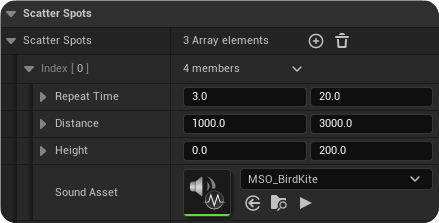
For example, Index [0] of the Scatter Spot illustrated below will spawn the MSO_BirdKite MetaSound into the world at repeated times anywhere between 3 and 20 seconds at a Distance between 1000-3000 units, and a Height between 0 -- 200 units.
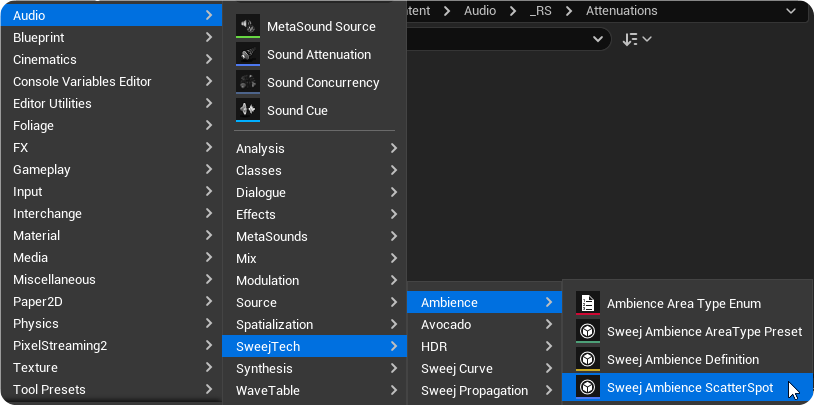
Scatter Spots are assets created using the +Add button in the Content Browser.
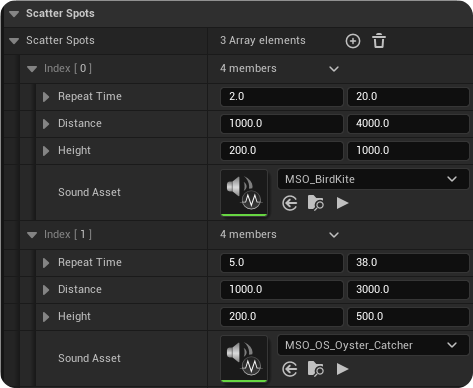
Double click the asset to open its editor and add elements to its array using the + button. For each element you can then determine the following:
Repeat Time - the minimum and maximum time range in seconds during which the repeat will trigger
Distance - the minimum and maximum distance from a reference point, typically the audio listener
Height -- the minimum and maximum height from a reference point, typically the audio listener
Sound Asset -- the sound asset to be used, this can be a MetaSound, Sound Cue, or Sound Wave
Your Scatter Spots can now be added to your Sweej Ambience Sound or Sweej Ambience Volume actors in their Details panel by checking the Scatter Spot Assets option and using the + icon to add array elements.

Using several array elements you can add multiple scatter spots to the Sweej Ambience Sound or Sweej Ambience Volume actors. This allows you to re-use and recombine Scatter Spots across your world.
Note: Don't forget to correlate the sounds attenuation settings with your Distance and Height settings so that it does not potentially spawn too far away to actually hear.
Scatter Spots Threshold
The ScatterSpotsThreshold (0-1) enables you to choose to only activate the Scatter Spots when the Resulting Level of a Sweej Ambience Sound or Sweej Ambience Volume has exceeded a given amount. Remember that the Resulting Level of an actor is the product of the players distance from the actor, the actor's Attenuation Distance settings and the Weight of the actor.
Resulting Level = Weight(Max Weight X Proximity) X Proximity (1- (Player Distance / Attenuation Distance))
So the lower the Scatter Spots Threshold value, the earlier they will start as the player approaches the Sweej Ambience Volume.
Scatter Spot Inspector
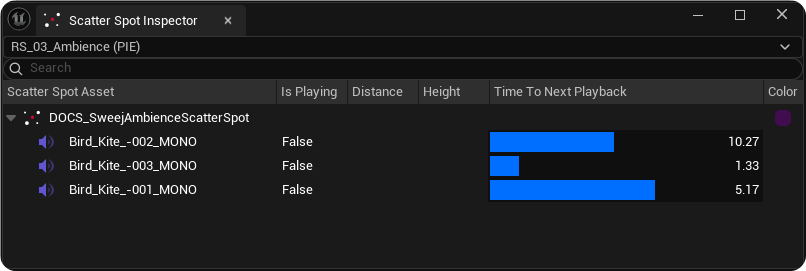
Open the Scatter Spot Inspector (Window / Ambience / Scatter Spot Inspector) to see live updates on scatter spot activity. The Scatter Spot Inspector will show you any active Scatter Spot Assets, the sound assets that are playing, and a countdown -- 'Time to next playback' as to when they will next trigger.
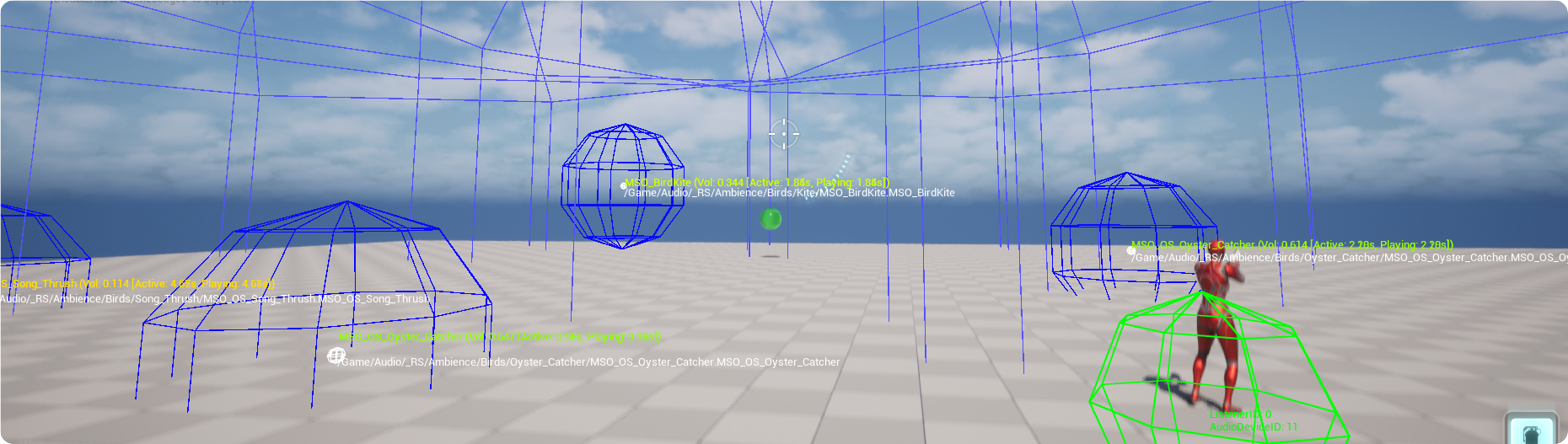
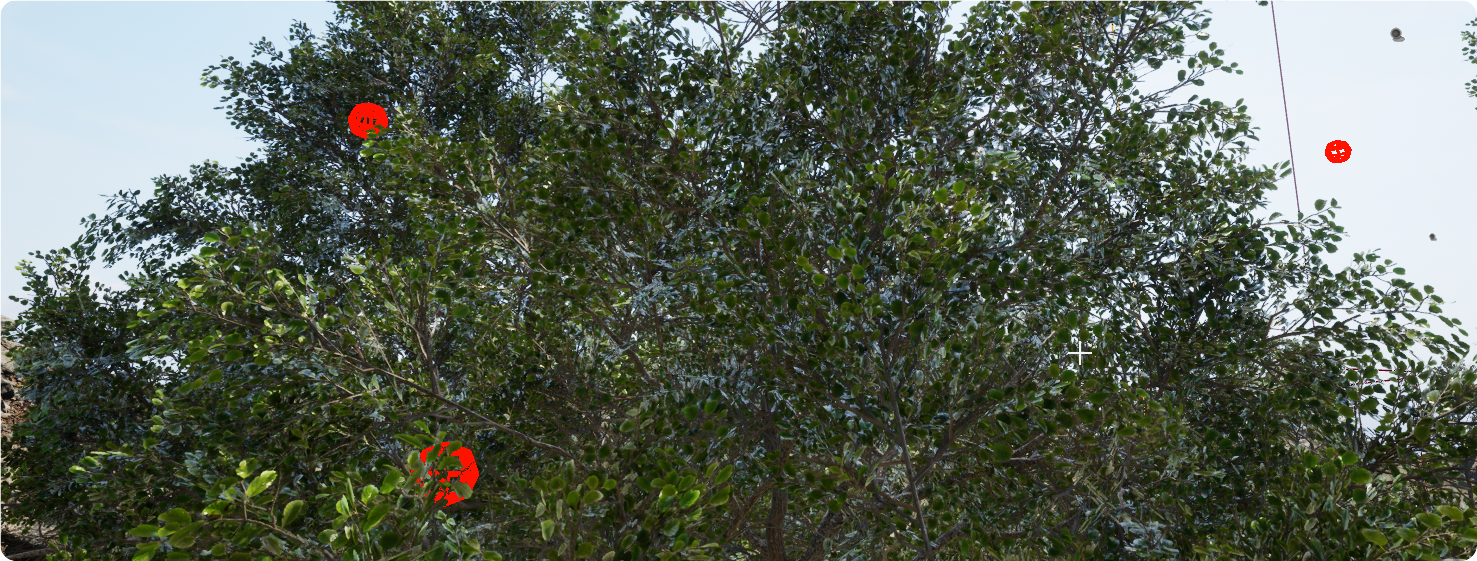
With a Scatter Spot selected in the Scatter Spot Inspector you will also see an appropriately colored debug sphere appear in the viewport when each sound is spawned.
You can also use the debug console command ShowActiveScatterSpotDefinitions 1 to print the active Scatter Spots to the screen.

Pre-warmed Scatter Spots
When the player initially enters an area sometimes you want to quickly establish the character for that area by having your scatter spots play early on, before returning to their normal Repeat Time behaviour. However, since the scatter spots are only initiated when the Scatter Spots Threshold has been passed, and the repeat times only start from this point, it can take a while for your Scatter Spots to build up to their desired density. For example, in the illustration below you can see that due to the natural sounding minimum repeat times chosen it will be almost 6 seconds after the threshold has passed before we hear any of the Scatter Spots.
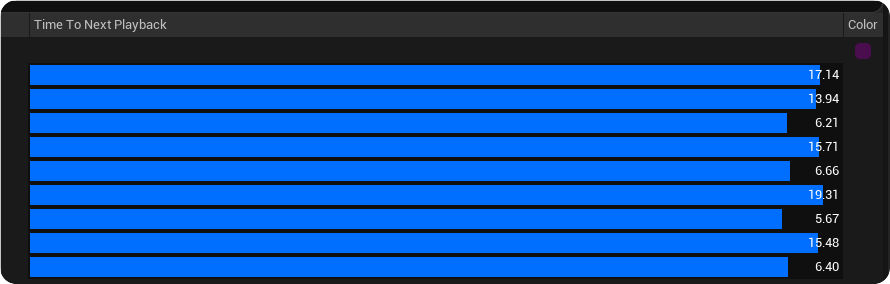
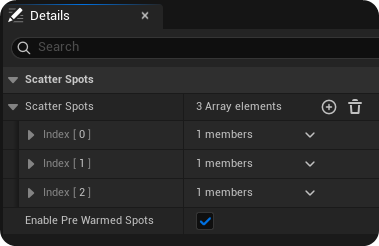
To mitigate this you can 'Enable Pre Warmed Spots' within the Scatter Spot asset. When this is enabled the Scatter Spots first trigger will happen between 0 and your minimum repeat time, creating faster initial sound buildup when entering an area.
Scatter Spots and variation
Scatter Spots give you precise control over the timing and distance of your spawned sounds, and we recommend that you use this in combination with behaviours within your Sounds in order to achieve variation in the sounds. Using the MetaSound behaviours to control pitch/volume randomization, sound assets and repetition memory, whilst the Scatter Spot controls the timing and world positioning is the ideal combination.