Area types
By defining Area Types these can be associated with AreaTypePresets. These allow you to define properties like sound wave sets, or float/int/bool values, per AreaType. These can then be accessed within MetaSounds via the Listener Area Type MetaSound Interface.
This is particularly useful for filtering exterior sounds when going indoors and for weapon sounds, where you can have different tail and noise sounds based on environment (interior vs exterior).
Defining your Area Types (Ambience Area Type Enum)
In the Content Browser create an Ambience Area Type Enum: Audio → SweejTech → Ambience → Ambience Area Type Enum.
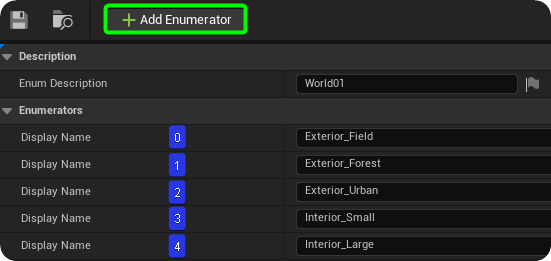
An Enum or 'Enumeration' is simply a data type that defines a list of named constants. So for each Area Type you want to define simply use the 'Add Enumerator'' button to add the names and descriptions for each area type (e.g., Outdoor, Indoor).
Since you will receive the Type ID in MetaSounds as an integer value it is worth at this stage considering the order of the areas as you create them. For example, you might want to group indoor and outdoor areas by order so that later you know that all Type IDs > 3 are in fact Indoor areas.
(Also to note that if two AreaTypes are presenting as equally important, the higher number will take priority. For example if there were two volumes, Indoor_Small & Indoor_Large, both at 0.5, Indoor_Large would take precedence due to 4 > 3.)
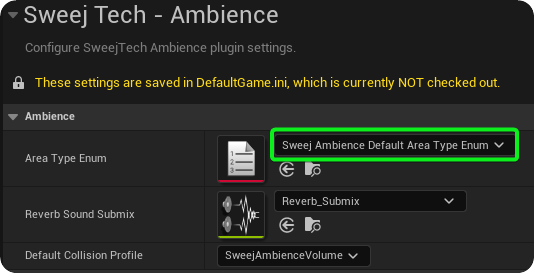
Assign your Area Type Enum to the Sweej Ambience system in your Project Settings: Project Settings -- SweejTech - Ambience - Area Type Enum.
Assign Area Types
Now that you have defined your area type in the Ambience Area Type Enum and assigned this to the Ambience system you can define each Ambience Component (in either Sweej Ambience Sounds or Sweej Ambience Volumes) as a specific area type. Check the Area Type box and use the drop down menu to select the type from the list you provided in the Enum.
You can also use an Ambience Definition asset to define Area Types.
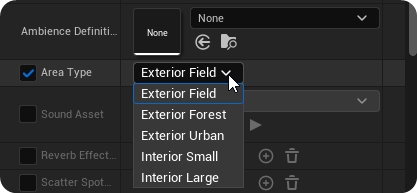
Note: Any Ambience component that does not have an Area Type manually defined will automatically default to the Area Type at Index 0 of the Ambience Area Type Enum.
Area Types: Primary & Secondary blending
To enable smooth crossfading over distance between Area Types for different areas both Primary and Secondary areas are defined. Whichever Area Type currently has the highest Mix level is designated as Primary, and the other becomes the Secondary. As discussed in the Concepts section the Mix values are a product of the Priority, Weight and Resulting Level relationship that underpins the Sweej Ambience system
Note that Area Type mixes are cumulative - so four overlapping areas which are all assigned as 'ExteriorUrban' with a 0.25 weight each would result in a Primary Area Type Mix (ExteriorUrban) of 1.0.
Using the following console debug command you can see the Primary and secondary area types change as you pass between areas, together with their Mix Amounts: SweejTech.Ambience.ShowAreaTypeDebug 1.
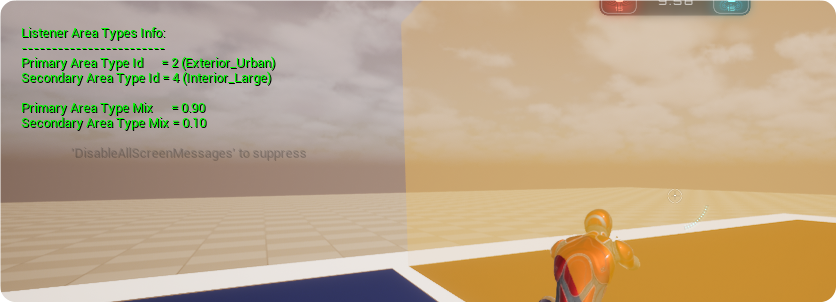
Area Type presets
As will be discussed in a moment the Sweejtech Ambience Listener Area Type Interface within MetaSounds enables access to a number of variables that can be associated with each area type. These are defined within an Area Type Preset. You can create an Area Type Preset via the + Add Button in the Content Browser: Audio → SweejTech → Ambience → Sweej Ambience Area Type Preset.
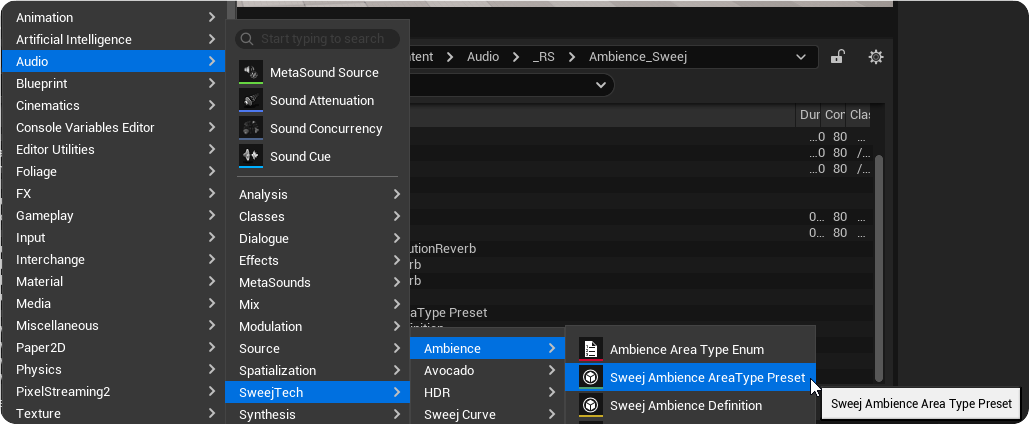
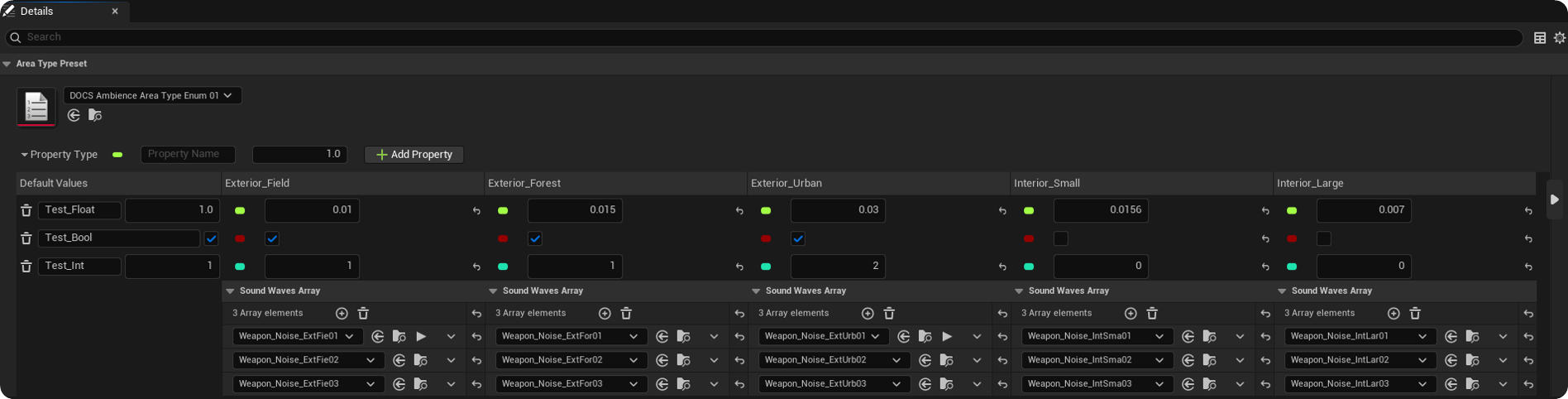
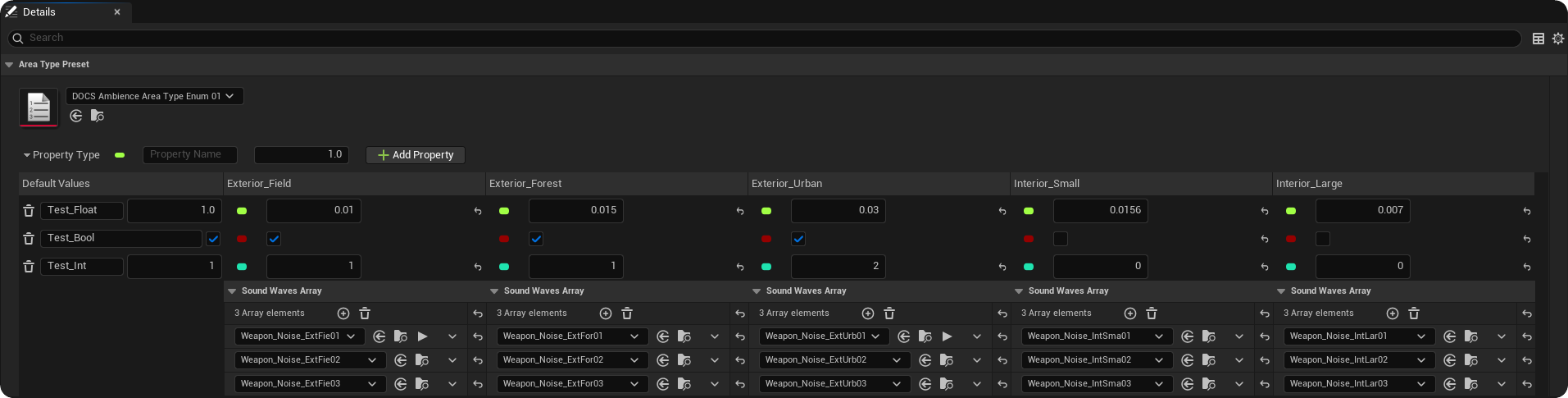
When you edit your Sweej Ambience Area Type Preset you will see that you have the option to add various properties or variables for each of the defined area types, together with an array of Sound Waves for each.

To add a property firstly define the property type (Int, Float, Bool) and a name for the property, then click on the Add Property button.
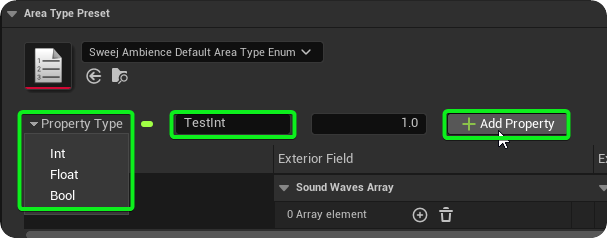
In addition to variables for each Area Type you can also add an array of Sound waves, the most typical use for this would be to assign specific weapon tails or reflective elements to play depending on the area type -- for example when you want different layers depending on whether the weapon is fired in a small interior area, or a larger external urban environment.
The Listener Area Type MetaSound Interface
Once your Ambience Area Type Enum and Sweej Ambience Area Type Preset is set up you can access these variables dynamically within your MetaSound as the player moves between Areas.
In the Interfaces Panel of your MetaSound add the SweejTech.Ambience.ListenerAreaType interface. This will give you four new inputs for your MetaSound: Primary Id, Primary Mix, Secondary Id, Secondary Mix.
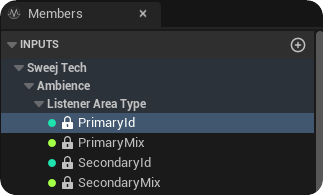
The Primary Id and Secondary Id Inputs give you the values relating to the Ambience Area Type Enum, for example if the listener was passing from an Exterior Forest area into an Exterior Urban area with the following setup then the Primary Id would be 1 and the secondary Id would be 2, and the Primary and Secondary Mix levels would represent the blend between the two that is governed by their relative priorities and Max Weights.
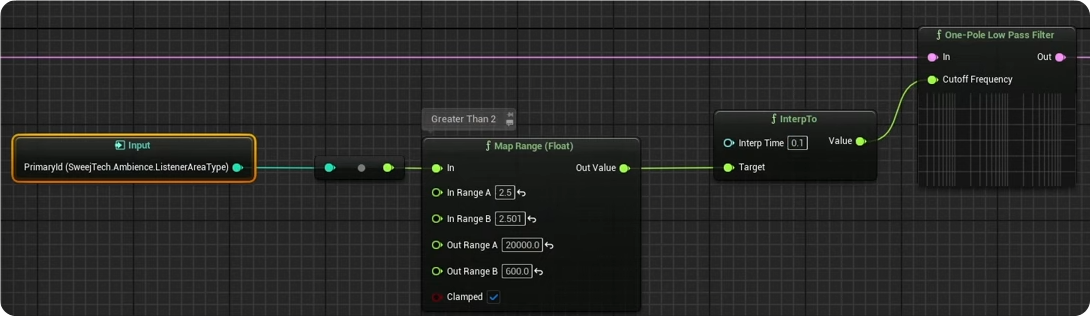
Using the Primary Area Type Id allows you to instigate changes within your MetaSounds that are dependent on which area the listener is currently in. For example, if you had set up your area types as discussed above then you know that if the Primary Area Type Id returns a value > 2 then the listener is within an interior area. Within your MetaSound you could use this value to implement a filter change on exterior sounds. In the example below if the Primary Id value is <2.5 then the filter cutoff is set to 10000 Hz, and if the value is greater than 2.501 the filter cutoff is set to 600 Hz (with and interpolation over time between these two values).
Using the Primary and Secondary Area Type Id's in combination with 'Get' nodes and a reference to your Area Type Preset enables you to access any of the other Area Type properties by name.
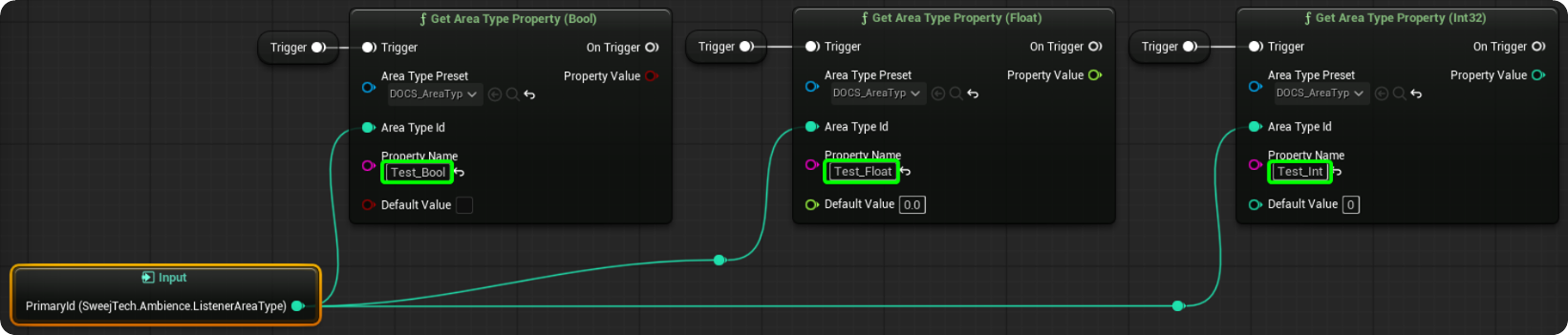
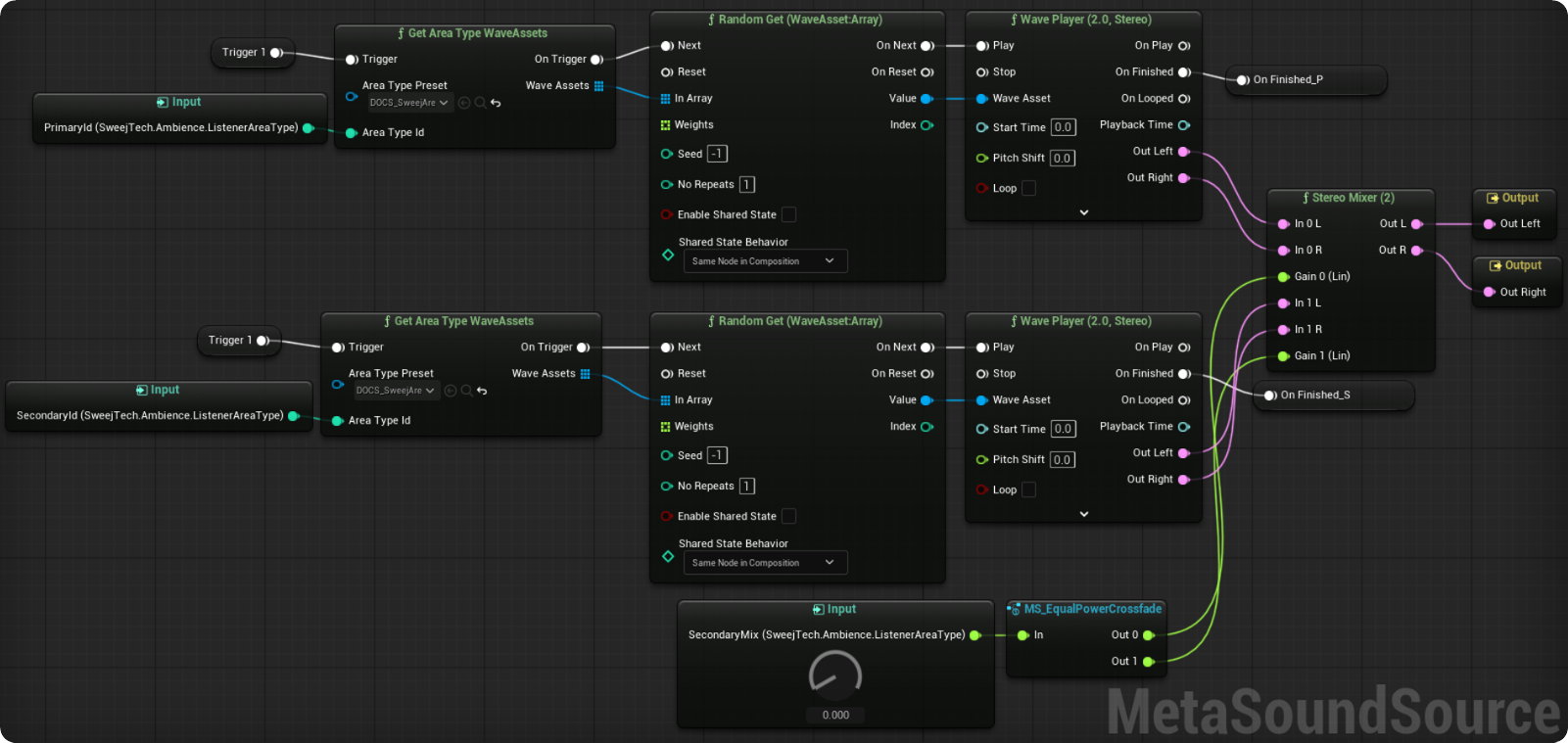
And similarly, you can also get the Sound Waves Array associated with an area by using the Id values.
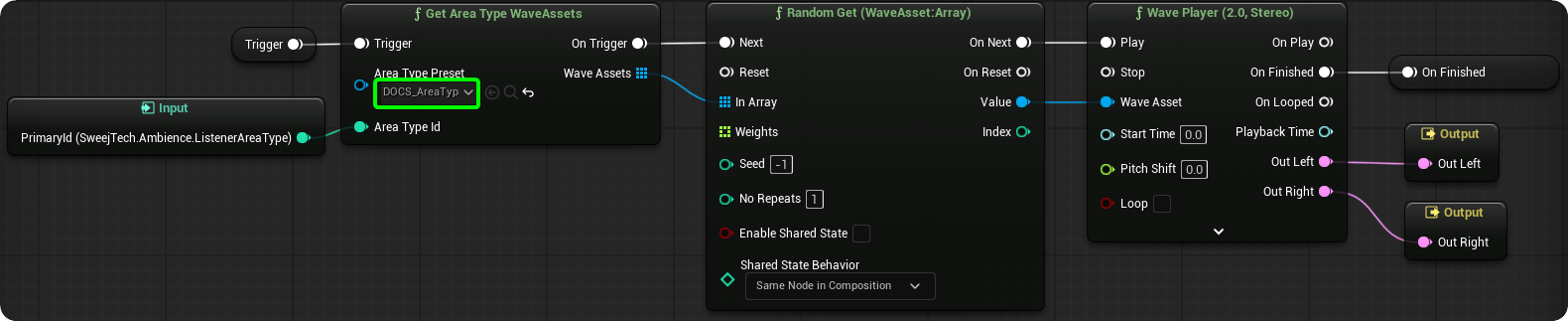
Using the Primary and Secondary Wave Asset sets in combination with the Secondary Mix value will allow you to create smooth crossfades between these layers as the player moves between areas.