Sweej Ambience Sounds and Volumes
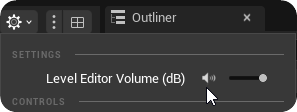
Sweej Ambience is rendered in Viewport so don't need to run the game to hear your sounds. This allows you to focus purely on the ambience. To hear the ambience live in the Viewport make sure that the Level Editor Volume is turned up in the Viewport settings.
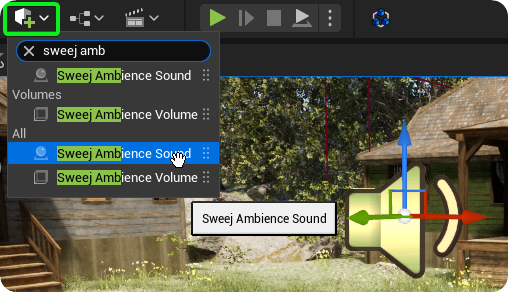
Sweej Ambience Sounds are actors for global audio.
Sweej Ambience Volumes are for carving out bespoke shapes to suit the different areas you need.
Scatter Spots assets that can be attached to Sweej Ambience Sounds or Sweej Ambience Volumes.
Sweej Ambience Definition assets that can be used for sharing the core settings of AreaType, Sound Asset, ReverbEffectChain and ScatterSpot across actors.
Sweej Ambience Sounds
The Sweej Ambience Sound is for global sounds that you want to persist over the entire gameplay area. You can override these using the priority system, and you can add scatter spot sounds to them, but their typical use might be to ensure that there is a consistent background sound to a level, and to avoid accidental pockets of silence.
Using the 'Add Actor' menu in the top toolbar place a Sweej Ambience Sound actor in your level.
Select the Actor in the Viewport and assign a looping audio file to Sound Asset.
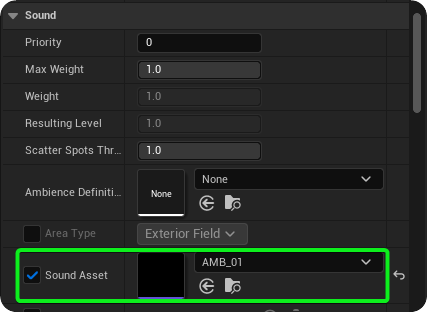
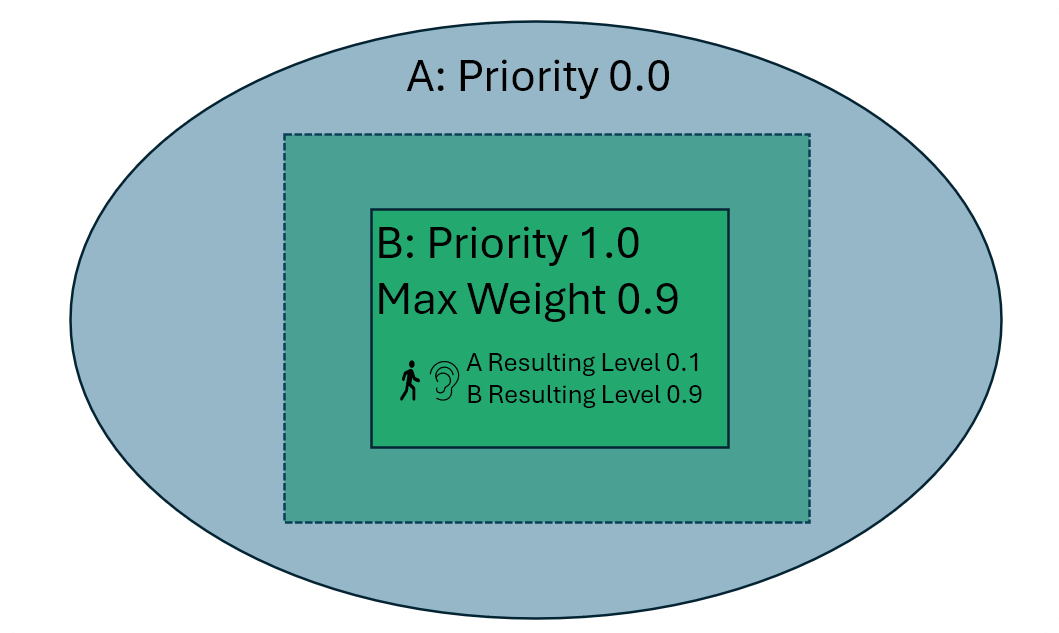
You would typically leave the Priority at a low figure for these actors since you may want them to be overridden by other Sweej Ambience Volumes within the level. You can also add Scatter Spot sounds to Ambience Sound actors. This will be discussed later.
Sweej Ambience Volume
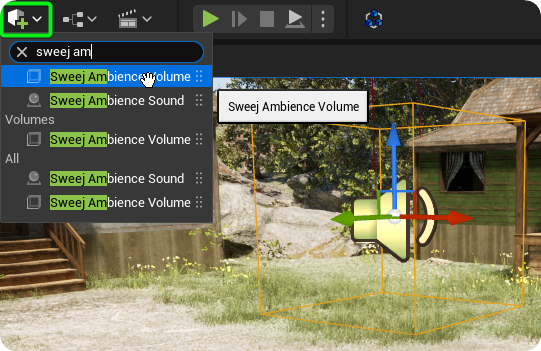
Sweej Ambience Volume actors enable you to define looping ambience and Scatter Spot sounds for bespoke areas, and to control how the sounds activate and fade across these areas. Using the 'Add Actor' menu in the top toolbar place a Sweej Ambience Volume in your level.
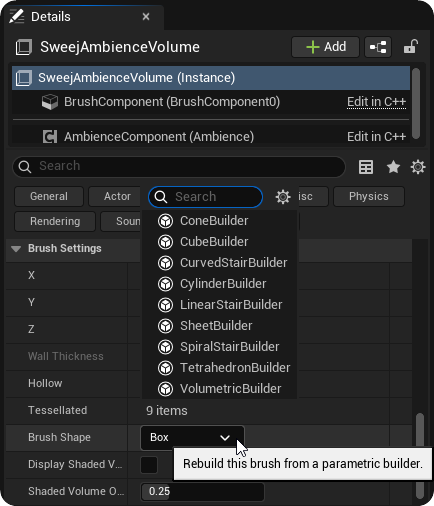
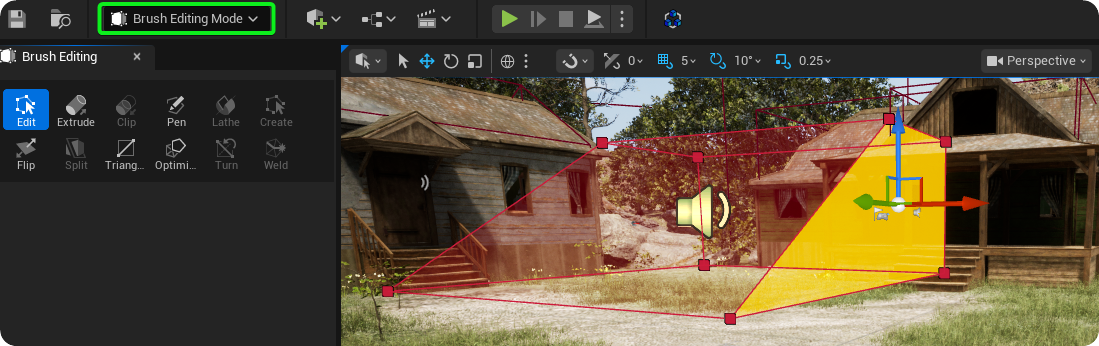
Use the Brush settings of the Sweej Ambience Volume to set a basic shape (box, cylinder, tetrahedron), then in the Modes menu switch to 'Brush editing' mode. Here you can access the editor tools to transform the shape to perfectly match your environment.
Adjust the Attenuation Distance to define the linear fade-in distance from volume's edge. Assign a Sound Asset and set a Priority (higher values take precedence in overlaps) for the Sweej Ambience Volume.
Sweej Ambience Inspector
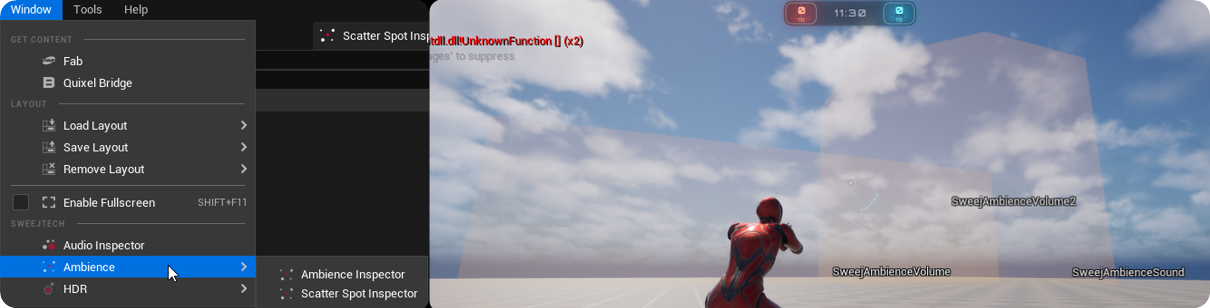
Open the Ambience Inspector (Window / Ambience / Ambience Inspector). Assets selected in the Ambience Inspector during gameplay will be displayed in game.
Right clicking on a column title allows you to select which columns are displayed. For a detailed explanation of these settings please see the Concepts page.
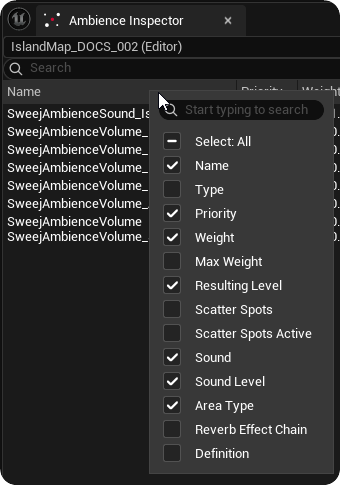
Name: The name of the actor
Type: Sweej Ambience Sound or Sweej Ambience Volume
Priority: The actor's Priority
Weight: The actor's Current Weight
Max Weight: The actor's Max Weight
Resulting Level: The resulting level is how much the sound is allowed to contribute to the system
Scatter Spots: The name of any Scatter Spots associated with the actor
Scatter Spots Active: Whether the Scatter Spots are active, as a result of the Scatter Spots Threshold
Sound: The Sound asset assigned to the actor
Sound Level: The accumulated value put on the sound in the very end of all calculations
Area Type: The Area Type associated with the actor
Reverb Effect Chain: The name of the reverb effect chain assigned to the actor
Definition: The name of any Ambience Definitions assigned to the actor
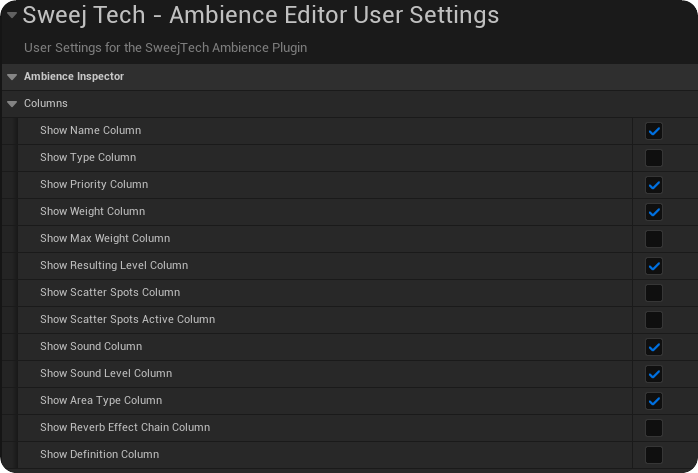
Note: You can also reset the displayed columns by going to Editor Preferences → SweejTech → Ambience Editor User Settings.
Experiment with Attenuation Distance, Priority, and Max Weight settings of your Sweej Ambience Sound and Sweej Ambience Volume and observe the Max Weight value in the Ambience Inspector window. Double clicking on an item within the Ambience Inspector will focus that item within the World and Outliner tab.