
QuickStart / Setup
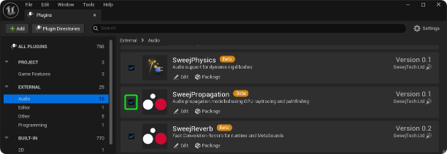
Enable the SweejPropagation Plugin
Go to Edit → Plugins → External → Audio → SweejPropagation
Restart the editor if needed
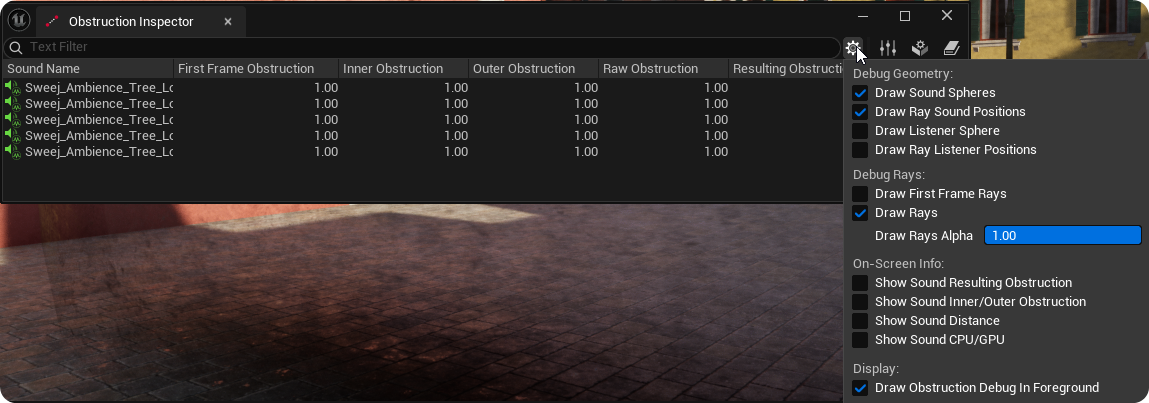
Open the Obstruction Inspector Window
- Window → Propagation → Obstruction Inspector
Select appropriate debug visualizations (Optional)
- Use the settings gear wheel icon in the Obstruction Inspector Window
Enable Propagation for appropriate sound assets
- Use the SweejTech Propagation Toolbar in the sound asset editors (Sound Wave, Sound Cue, MetaSound)
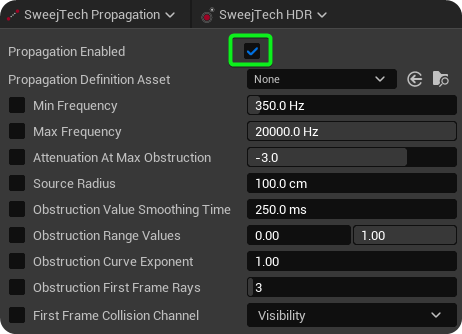
Create Sweej Propagation Sound Definition assets to share settings (Optional)
In the Content Browser Add → Audio → SweejTech → Sweej Propagation → Sweej Propagation Sound Definition
Assign them in the SweejTech Propagation Toolbar in order to share settings across multiple sound assets