
Quick Reference
Project Settings
Edit → Project Settings → SweejTech → Propagation
Or use the shortcut from the Obstruction Inspector:

General Ray Tracing
Hemisphere Points Distribution: Which distribution (Uniform or Cosine) is used for Fibonacci-generated hemisphere ray source positions.
Hemisphere Points Spread Factor: Nomalized weighting for Fibonacci-generated hemisphere ray source positions. 0.5 reproduces the default behaviour. Values above 0.5 bias points toward the center, Values below 0.5 bias points toward the rim.
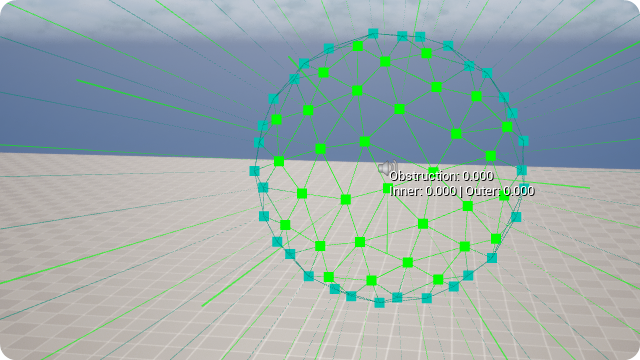
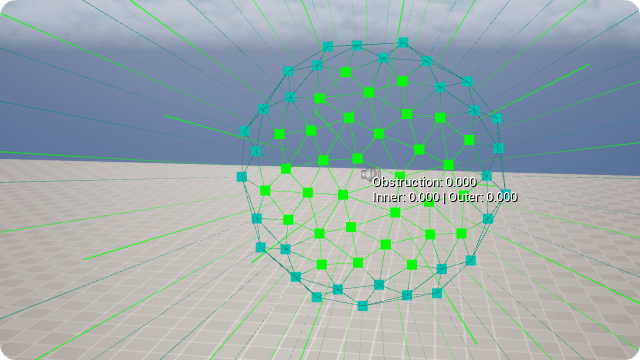
GPU Ray Tracing
Enable Squishy Sound Sphere: When enabled, each obstruction ray that starts from a sound will first trace from the sound center toward each main ray start point on the surface of the sound sphere. If nearby geometry intersects that path, the origin of the main ray is moved inward to the hit point. This creates a "Squishing" effect on the sound sphere. Disable to use the points on the surface of the sound sphere directly, regardless of nearby geometry, which can lead to clipping in some cases.
CPU Fallback Distance: When the distance between the listener and the sound is greater than the CPU Fallback Distance, obstruction will be calculated on the CPU. If your project unloads models from the raytracing scene at large distances, use this setting to ensure sounds with large attenuation distances still obstruct. Only one asynchronous ray will be used beyond this distance.
CPU Rays
CPU Rays Collision Channel: Which collision channel is used for CPU Obstruction checks. This includes the CPU fallback if GPU raytracing is disabled, and the first frame rays that set the initial value of obstruction. A collision channel based on visibility is recommended.
Num CPU Rays: How many rays per sound are used for CPU obstruction.
First frame CPU Rays
Num First Frame Obstruction Rays: The number of first frame obstruction rays. Note: First frame rays are executed on the CPU synchronously on the game thread in order to provide instant obstruction values (especially useful for sounds with immediate transients). Subsequent rays are executed asynchronously on the CPU/GPU. 0.0 will not execute first frame rays which can result in large jumps in the obstruction value (not recommended).
Listener
Listener Radius: The offset from the listener that rays are fired from. Smaller values provide more accurate results, but may results in false positives when geometry is close to the listener. Larger values will be less accurate but will offer smoother results.
Update
Ray Trace Update Mode: The propagation raytrace subsystem update mode can by automatic at the update interval defined in UndateIntervalSec or Manual (Tick method of USweejPropagationRaytraceSubsystem called explicitly by another system).
Automatic Update Interval: Interval in seconds between automatic updates. Set to 0.0 to update every frame (maximum framerate). Any other value represents a fraction of a second e.g. 0.25 means four updates per second.
Authoring
Default Definition Asset: The default Propagation Sound Definition asset that will be applied to every Propagation sound created. This allows you to enforce a set of sensible default values. The default DefaultPropagationSoundDefinition_SPSD asset is stored here: /SweejPropagation/Defaults.
Per Platform Settings
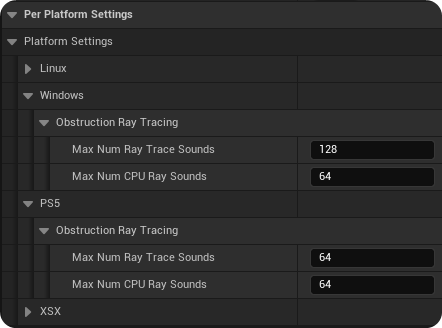
Max Num Ray Trace Sounds: The Maximum number of sounds sent to GPU obstruction ray tracing per update.
Max Num CPU Ray Sounds: The Maximum number of sounds sent to CPU obstruction ray tracing per update.
Editor Preferences
Edit → Editor Preferences → SweejTech → Propagation Editor User Settings
Or use the shortcut from the Obstruction Inspector:
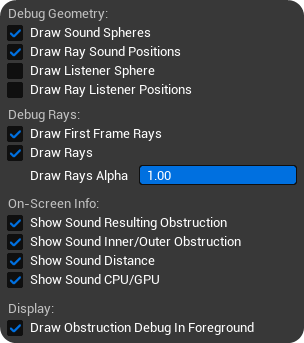
The options in the Debug Obstruction menu mirror those available from the Obstruction Inspector settings gear icon, with the exception of the Rays Colors and Draw First Frame Rays lifetime (Seconds). See [LINK]{.mark} for more details.
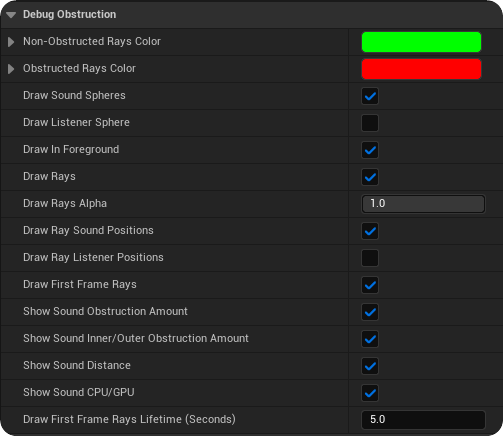
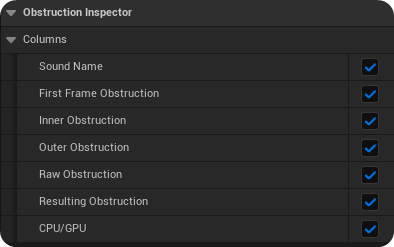
The options in Obstruction Inspector menu mirror those available from the right click columns menu of the Obstruction Inspector. See the Concepts [LINK]{.mark} section for an explanation of what these are.
Propagation Toolbar
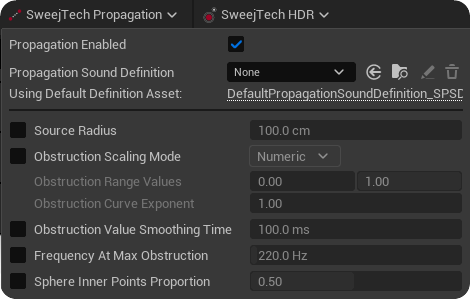
Propagation Enabled: Propagation is enabled / disabled for this asset.
Propagation Sound Definition: The Propagation Sound Definition Asset. Propagation Sound Definition assets are used to share settings between multiple assets. Propagation values will use those from the assigned Propagation Definition Asset unless overridden locally via the checkboxes. If no Propagation definition asset is assigned then values will fall back to using the default Definition Asset DefaultPropagationSoundDefinition_SPSD asset stored here: /SweejPropagation/Defaults.
Source radius: The best value for occlusion will be chosen from within this radius around the emitter.
With larger sources, more of the environment around the sound is taken into account, which will change the obstruction amount depending on how dense the environment is.
Obstruction Scaling Mode: Choose Numeric or Curve Scaling mode for obstruction behaviour. Numeric uses the Obstruction Range Values and the Obstruction Curve Exponent. The Curve option allows you to draw a curve or use a curve asset.
Obstruction Range Values: These set the range over which obstruction is active. For example, Obstruction Range Min 0.5 / Max 1.0 would map the Filter Frequencies 20,000Hz - 350Hz across the range from 20,000Hz at 0.5 to 350Hz at 1.0. Obstruction Range Min 0.0 / Max 0.5 would map the Filter Frequencies 20,000Hz / 350Hz across the range from 20,000Hz at 0.0 Obstruction, to 350Hz at 0.5 Obstruction. The Obstruction values used are the final Resulting Obstruction values. For more on how these are derived see the Concepts section [LINK]{.mark}.
Obstruction curve Exponent: This Controls how quickly obstruction ramps up as rays become blocked.
1 = Linear response.
Values < 1.0 increase obstruction more aggressively (a more logarithmic curve)
Values > 1.0 increase obstruction more gradually (a more exponential curve)
Obstruction Value Smoothing Time: The obstruction value used for filters and attenuation will move smoothly over this amount of time to its current value to prevent hard cuts in the frequency response or amplitude.
Frequency at Max Obstruction: The filter frequency that is used when the sound is at Max Obstruction as defined by the Obstruction Range Values.
Attenuation at Max Obstruction: The attenuation that is applied when the sound is at Max Obstruction as defined by the Obstruction Range Values (in dBFS).
Sphere Inner Points Proportion: When evaluating obstruction, points from the inner part of the sphere are compared to the outer ring of the sphere and the less obstructed path wins. This property controls what proportion of points per sound are considered as the inner part of the sphere.
Obstruction Inspector
Window → Propagation → Obstruction Inspector.
Columns

Right click the columns in the Obstruction Inspector to select which values to display.
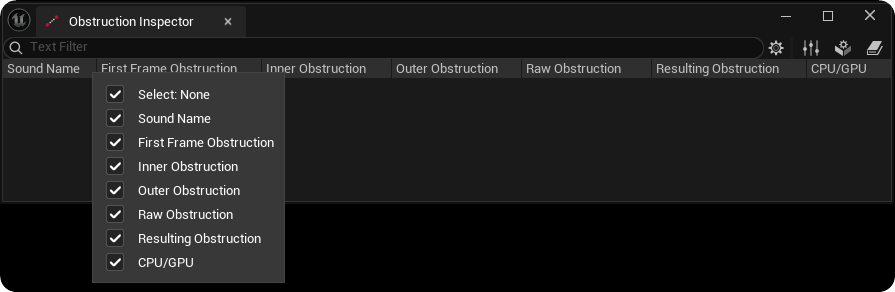
Sound Name: The name of the sound being Obstructed.
First Frame Obstruction: The amount of First Frame Obstruction to be applied to the sound, calculated using CPU ray tracing.
Inner Obstruction: The obstruction value calculated from the inner area of the obstruction rays.
Outer Obstruction: The obstruction value calculated from the inner area of the obstruction rays.
Raw Obstruction: The raw obstruction value (minimum of the Inner and Outer obstruction value).
Resulting Obstruction: The final obstruction value applied to the sound after obstruction scaling is applied.
CPU/ GPU: Shows which processor currently handles this sounds obstruction. None means the sound is not currently assigned to an obstruction processor path.
Debug Displays
Clicking on the settings / gear icon right hand side opens the debug menu where you have a number of options for visualizing the obstruction processes and related information.
Debug Geometry
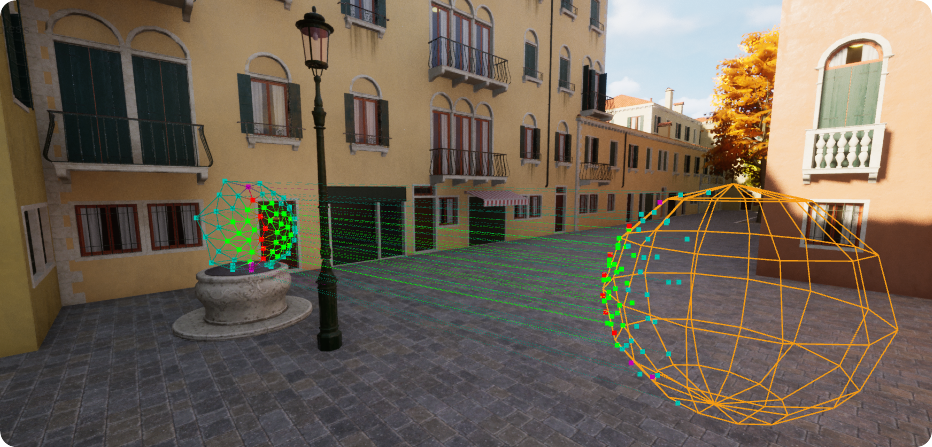
Draw Sound Spheres: Enable or disable drawing of obstruction sound spheres. The color of the sphere indicates obstruction:
Inner clear: Green
Inner obstructed: Red
Outer clear: Teal
Outer obstructed: Purple
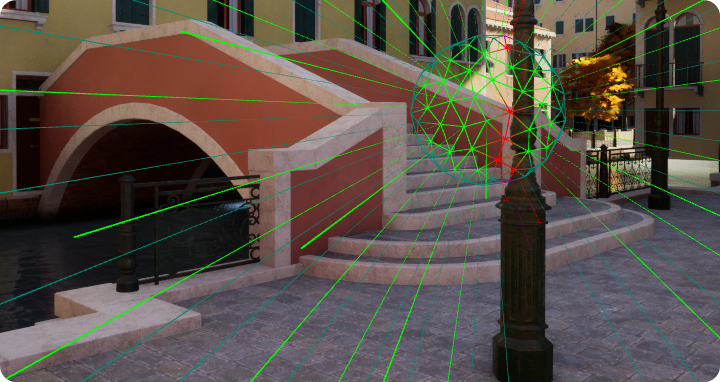
Draw Ray Sound Positions: Enable or disable drawing obstruction ray start positions for the propagation subsystem. Positions where there is an unobstructed path between the listener and sound source are displayed in green, and obstructed in red.
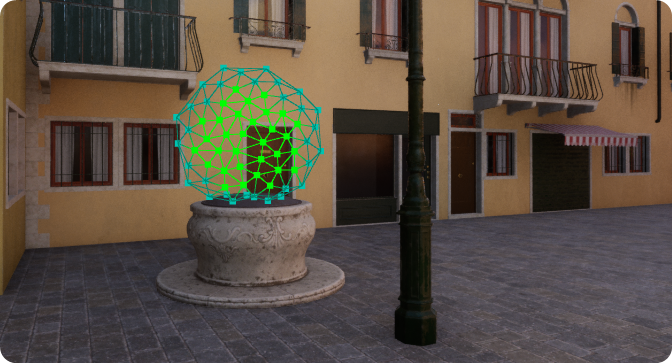
Draw Listener Sphere: Enable or disable drawing obstruction listener sphere.
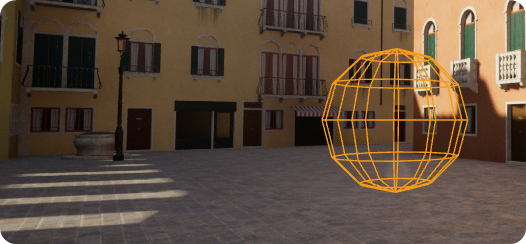
Draw Ray Listener Positions: Enable or disable drawing obstruction ray listener positions for the propagation subsystem. Positions where there is an unobstructed path between the listener and sound source are displayed in green and obstructed in red.
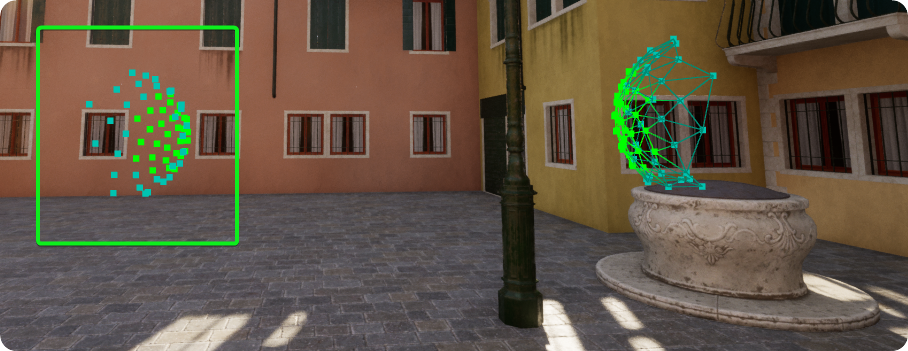
Debug Rays
Draw First Frame Rays
Enable or disable drawing first frame only (CPU) obstruction rays and their results for the propagation subsystem. First frame rays for unobstructed paths are displayed in green, for unobstructed paths they are displayed in red.
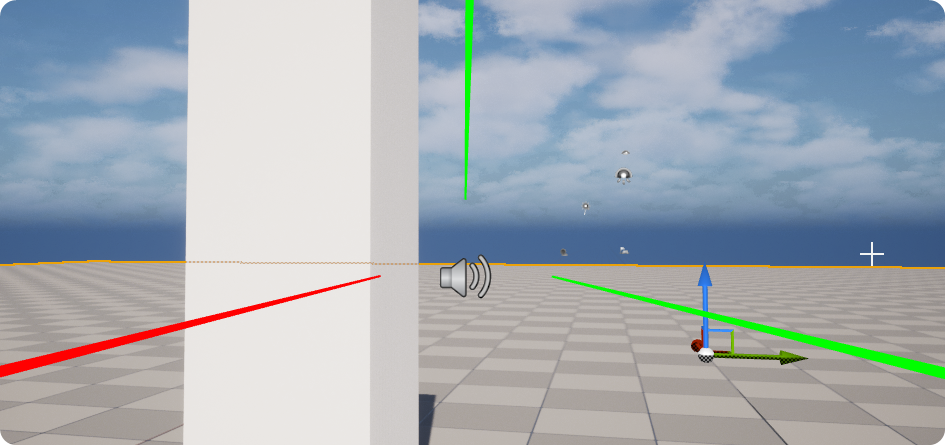
Draw Rays: Enable or disable drawing obstruction rays.
Green lines: Clear path between listener and source
Red Lines: Obstructed path between listener and source
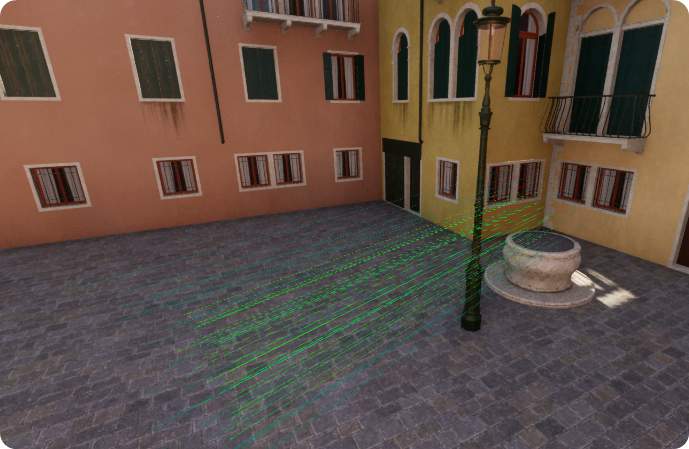
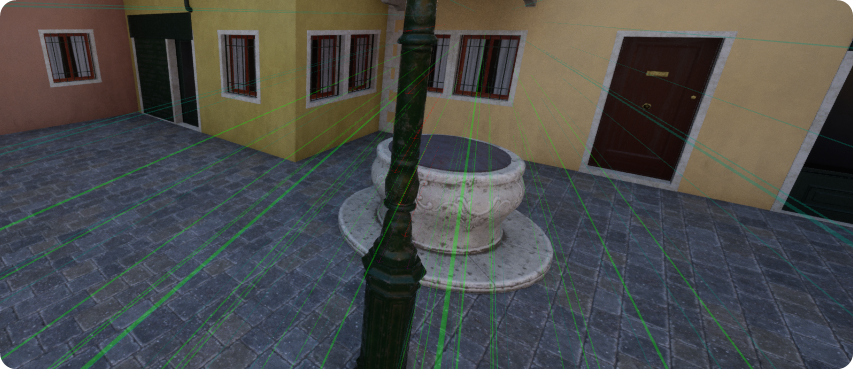
Draw Rays Alpha: Normalized alpha used when drawing obstruction rays (0.0 = Fully transparent).
And these of course can be combined. The image below shows Sounds Spheres, Listener Sphere, Ray Sound Positions, Ray Listener Positions, and Rays.
On Screen Info
Show Sound Resulting Obstruction: Show the Resulting Obstruction value at each sound source.
Show Sound Inner / Outer Obstruction: Show the Inner and Outer obstruction values at each sound source.
Show Sound Distance: Show the distance from the listener at each sound source.
Show Sound CPU / GPU: Show which processor currently handles each sound source.
Display
Draw Obstruction Debug in Foreground:
Additional Console Commands
SweejTech.Propagation.EnableDispatch
Enable or disable dispatch of the propagation raytrace shaders and pathfinding from the propagation subsystem.
0: Disable, 1: Enable
SweejTech.Propagation.EnableObstructionDSP
Enable or disable the obstruction DSP for SweejTech Propagation
0: Disable, 1: Enable