
Components and Extensibility
The Sweej Ambience Component and Sweej Amb Tracer Component provide opportunities to craft bespoke ambience systems according to your needs. We will briefly examine a couple of case studies for illustration.
Adjusting the Weight of Sweej Ambience Sound Actors (via the Sweej Ambience Component)
As discussed above a combination of the Priority and the Weight of Sweej Ambience Actors determines which ones are heard at what Resulting Level (up to the Max Weight setting). For example, a Sweej Ambience Sound (which is global) will be reduced in volume across the Attenuation Distance of a Sweej Ambience Volume of a higher priority as the Weight of the Sweej Ambience Volume increases, and therefore the Weight of the Sweej Ambience Sound decreases.
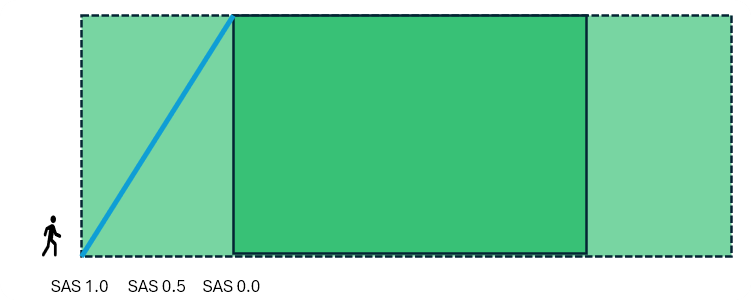
We can utilize this effect by layering multiple global Sweej Ambience Sound actors with a hierarchy of Priorities and then manually setting their Weights via Blueprints.
For example, if there were a Sweej Ambience Sound '_Interior' with a Priority of 0.0 and another Sweej Ambience Sound '_Exterior' with a Priority of 1.0 in the same level, by default you would only hear the Sweej Ambience Sound '_Exterior' with a Priority of 1.0. However, if we 'Set Weight' to bring the Weight of the higher priority '_Exterior' sound down then the other '_Interior' sound would come through. We could adapt this principle to create a dynamic weather or environmental ambience as illustrated in the video above.

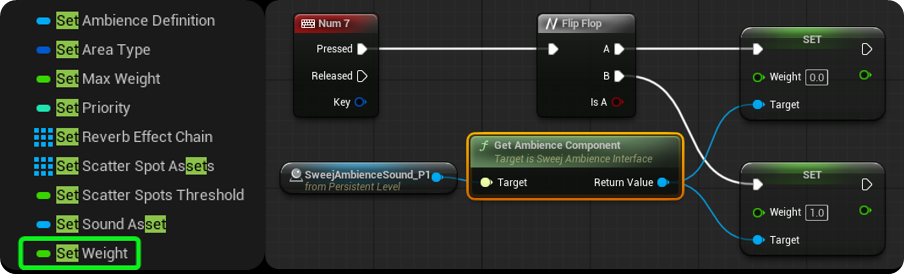
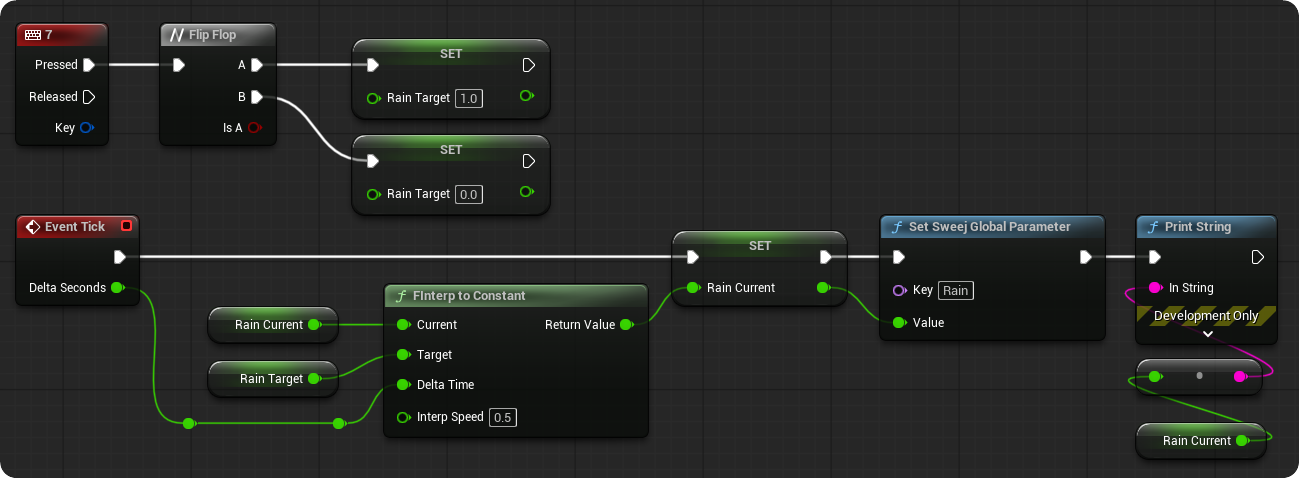
To make this more adaptable you could construct a Blueprint Component to add to your Sweej Ambience Sounds when appropriate that taps into the SweejTech Global Parameter system. This way you could use any named Global Parameter Value to alter the Weight of your Sweej Ambience Sounds. Below is an illustration of such a component.
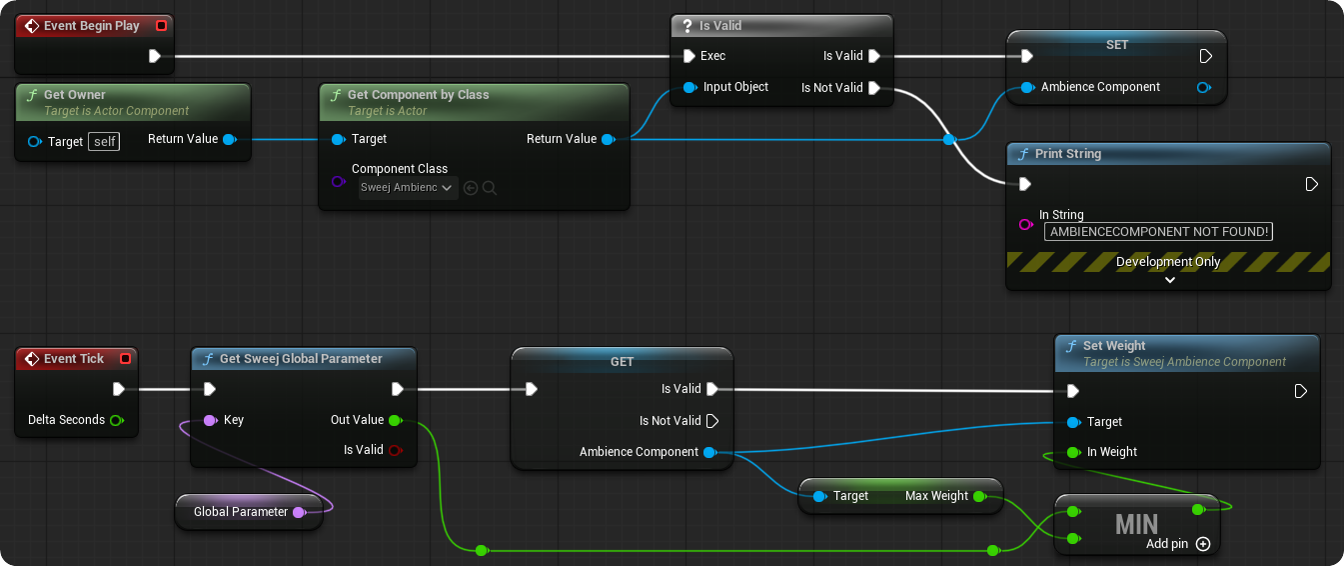
(The Min node is used so that the minimum value of either the original Max Weight setting or the Global Parameter value is used. This means that the resulting Weight setting will never go over the original Max Weight value.)
When added to a Sweej Ambience Sound it will get the Sweej Ambience Component of the owner (the Sweej Ambience Sound) and use the Sweej Global Parameter to set its Weight.
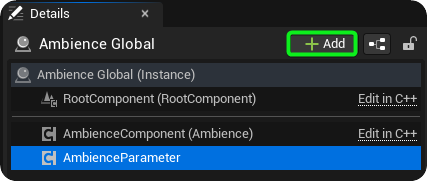
A correspondingly named Sweej Global Parameter can now be sent from any Blueprint
Detecting environments via the Sweej Amb Tracer Component
The Sweej Amb Tracer Component generates a number of line traces that can be used to determine the nature of the environment in order to automate some aspects of producing a dynamic ambient soundscape. It is designed to run asynchronously with performance in mind. The Sweej Amb Tracer Component would typically be deployed within the Player Character in order to detect the environment around the player.
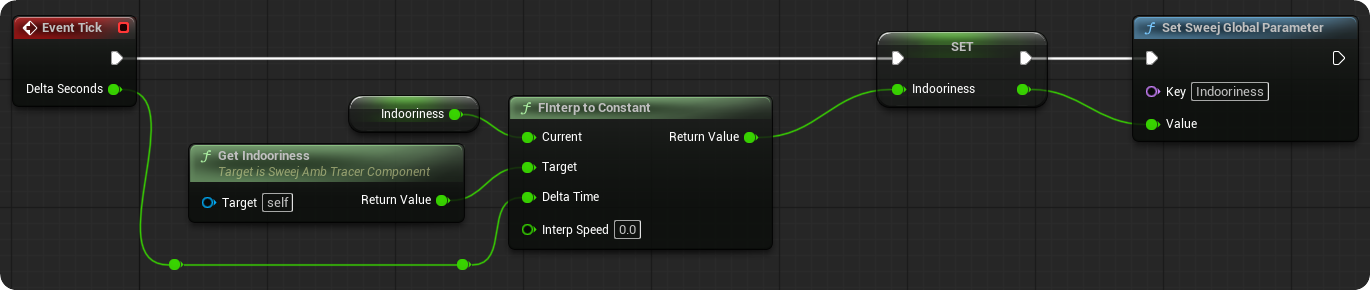
In this example we'll briefly discuss how you might use the Sweej Amb Tracer Component variable 'Indooriness' in order to adjust the weight of a Sweej Ambience Sound in the manner discussed in the previous section.
If we create a Blueprint class using the Sweej Amb Tracer Component as parent the system below will get us the current 'Indooriness' value and send it to a Sweej Global Parameter also named 'Indooriness'.
This can then be used to adjust the Weight of a Sweej Ambience Sound actor in the manner described above, thereby automating a change in the soundscape that relates to the amount of 'Indooriness' detected.
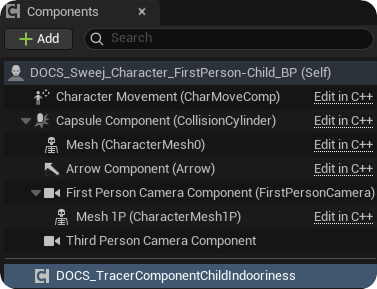
When this component is added to the Player Character we can examine the settings available in its Parent Class, the Sweej Amb Tracer Component.
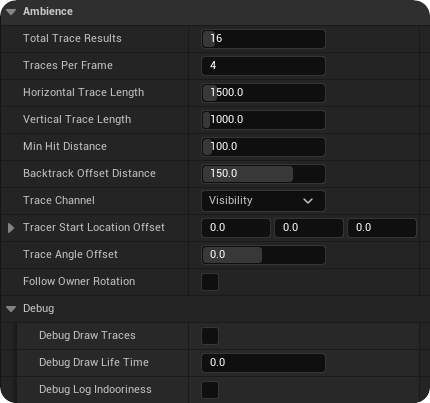
Total Trace Results: How many trace results will be stored, each one storing the result of one horizontal and one vertical trace.
Traces per frame: How many async traces to initiate per frame
Horizontal Trace Length: Length of the Horizontal Traces, intended to hit a wall
Vertical Trace Length: Length of the Vertical Traces, intended to hit a ceiling
Min Hit Distance: Any horizontal trace below this distance will be ignored and no vertical trace will be done
Backtrack Offset Distance: Offset from the horizontal hit location (towards origin of trace) when starting the vertical trace.
Trace Channel: Which collision channel to use for the traces
Tracer Start Location Offset: Can be used to offset the start location of the traces
Trace Angle Offset: Can be used to rotate all trace directions, for tweaking purposes
Follow Owner Rotation: Follow the owners component rotation when true
Debug Draw Trace: Draw debug shapes in the world for all hits
Debug Draw Life Time: How long, in seconds, to hold the debug shapes on screen
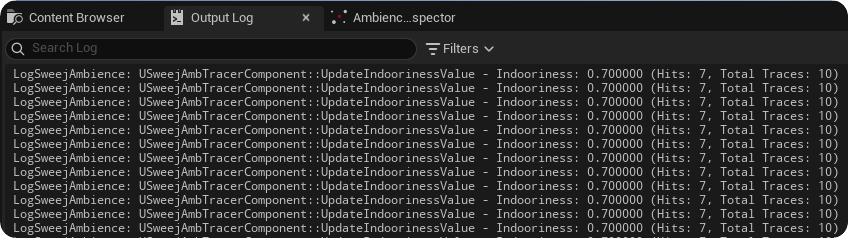
Debug Log Indooriness: Prints information about Indooriness calculations to the log
Deriving 'Indooriness'
The 'Indooriness' value is derived by sending out a number of line traces and tracking the number of hits found on a specific trace channel. By default it uses the trace channel Visibility but you can create and select bespoke trace channels if required in Project Settings → Engine → Collision.
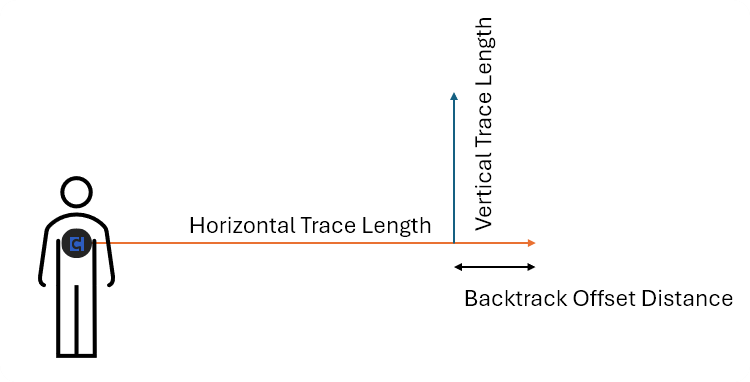
A horizontal trace goes out until it either reaches the set Horizontal Trace Length (adjusted by a Backtrack Offset) or it hits an object. The Backtrack Offset is to account for geometry such as window surrounds or gutters.
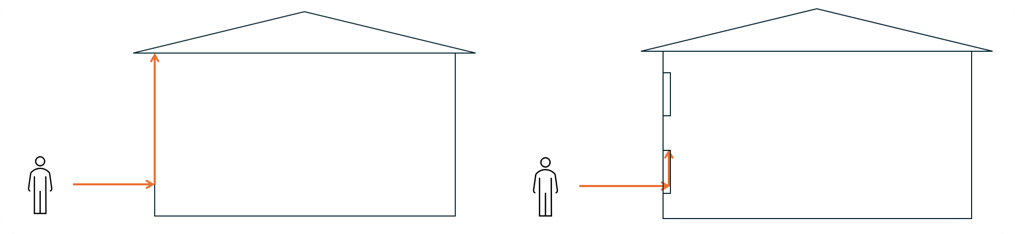
If there is a blocking hit from the horizontal trace then a vertical trace is made. If this also records a blocking hit then this is counted as a 'Hit' in terms of 'Indooriness'. A horizontal trace and vertical trace is counted as one trace result, so a setting of Total Trace Results 16 will attempt 16 horizontal and 16 vertical traces. (If a horizontal trace hits a target closer than the Min Hit Distance then the horizontal trace gets marked as invalid. This is to avoid a disproportionate number of false positives when close to a wall or in a corner etc).
Indooriness = No of Vertical Hits / Total Trace Results
This is the default method of deriving an 'Indooriness' value however you can of course adapt this to your own requirements by getting the individual trace results.
Debug
Enabling the Debug within the Sweej Amb Tracer Component allows us to see the line trace results within the Viewport during gameplay. In the following images you can see the horizontal traces shown in purple (Hit) and green (end of trace length without hit), and the vertical traces shown in Red (Hit) and Green (end of trace length without hit).
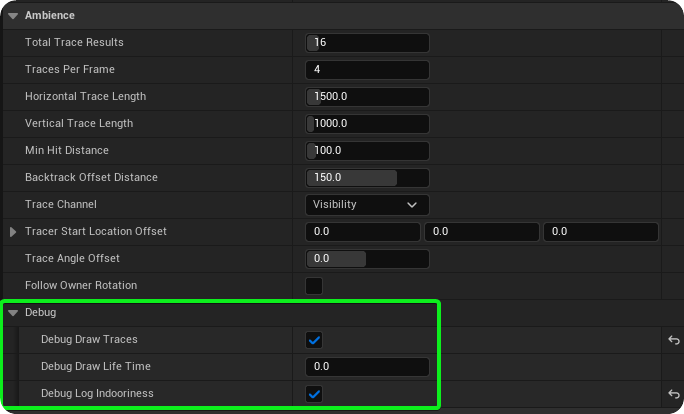
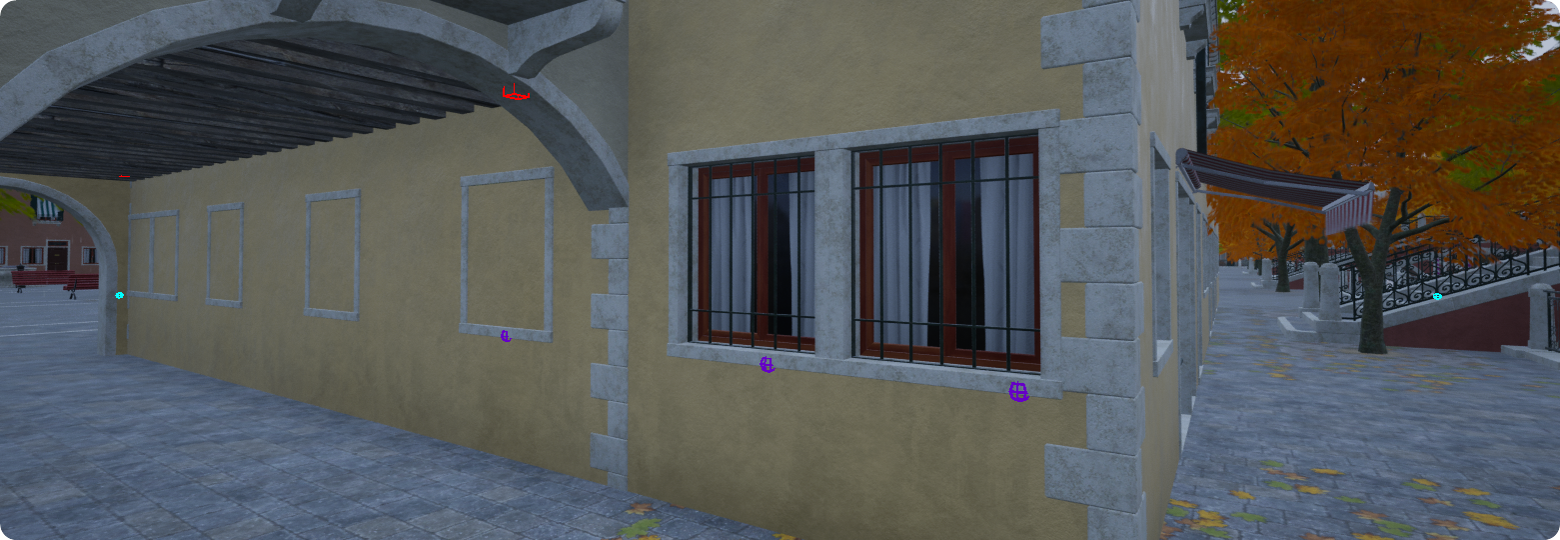
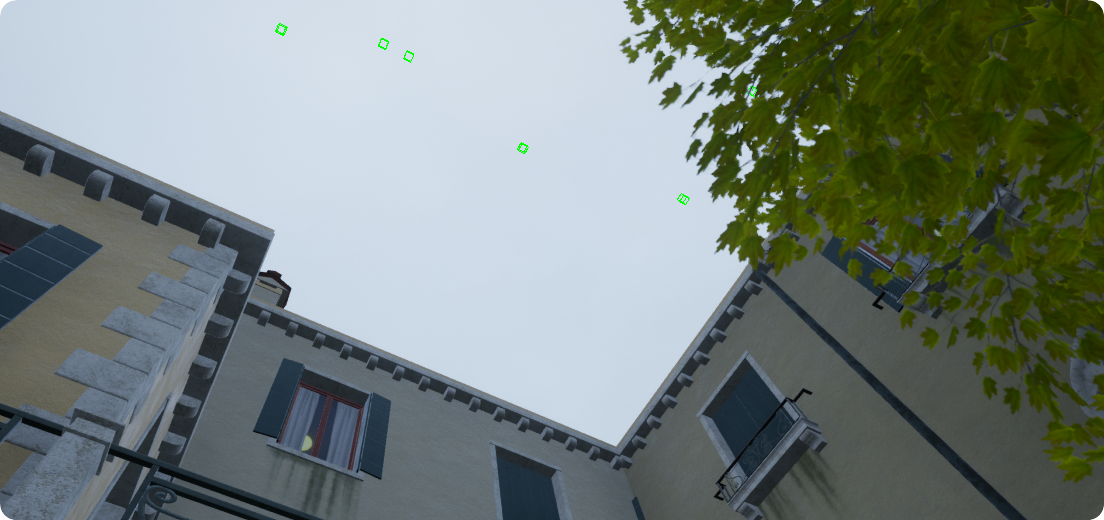
The values are displayed in the Output Log.
Bespoke environment detection
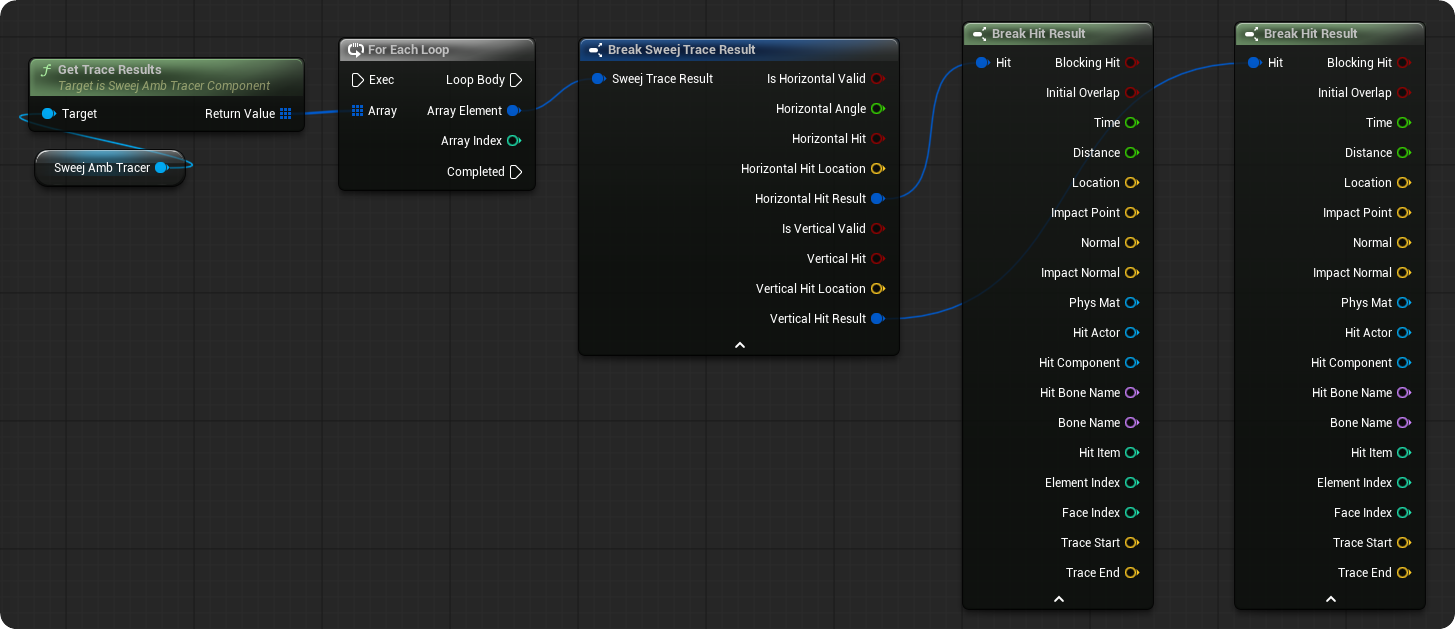
The Indooriness value is derived from the number of hits that the line traces detect with any objects on the visibility channel (by default), however it is possible to get the trace results themselves and examine the types of object being hit in order to affect the Weight of an Ambience Component. By doing so we can automate the detection of different types of environment based on the type of object found in the vicinity of the player.
As mentioned above you can access the Trace results directly within the Sweej Amb Tracer Component and by doing so you could develop a system that counts the number of a specific type of object in the vicinity of the Player Character. For an example in order to detect whether the player is in a forest type area we could search the names of the hit components for substrings such as 'tree', 'forest', 'boulder', count the results and map this range to 0.0 -- 1.0 in order to control the Weight of a forest Sweej Ambience Sound.
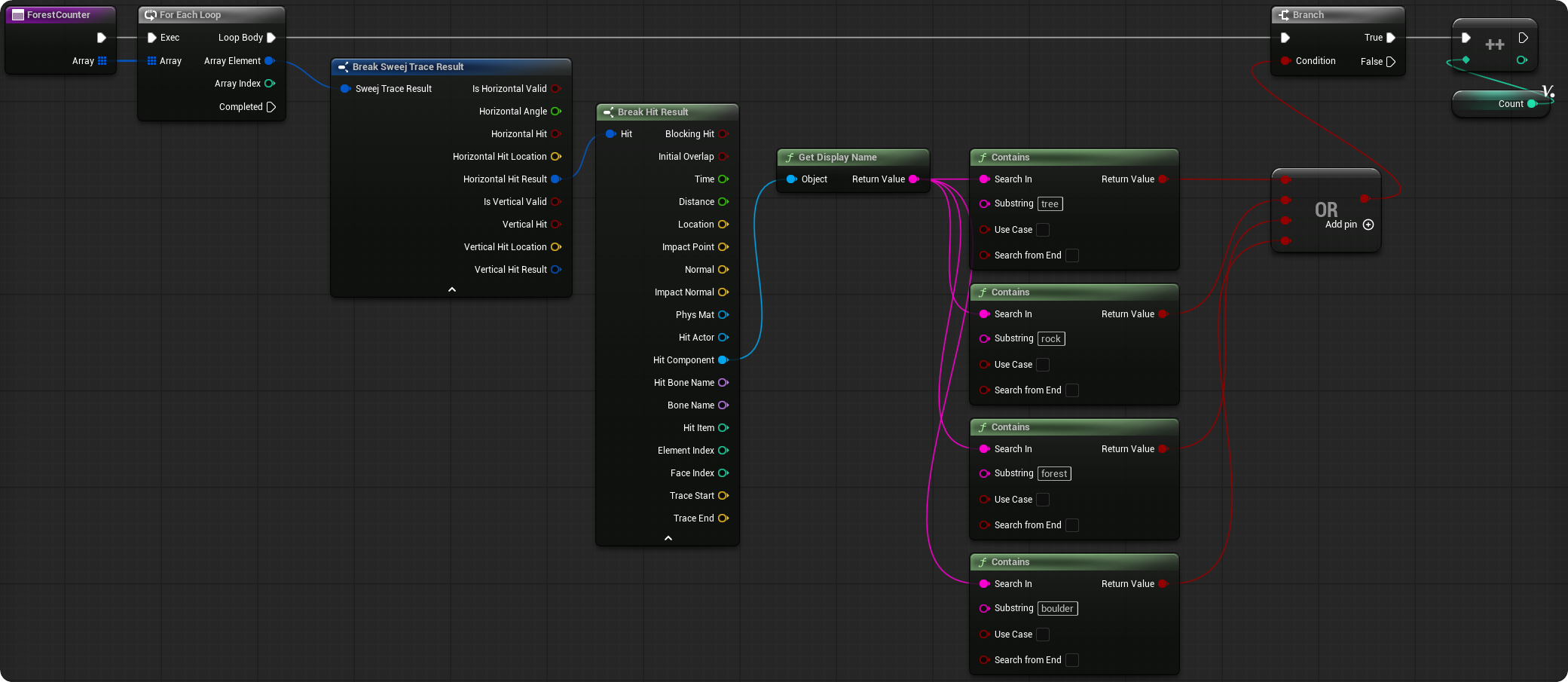
Note: This is purely for illustration, string comparisons within a large scale game would be sub-optimal in terms of performance.