
HDR and Game Settings
Most games let players set their own levels for sound effects, music and dialogue from an options menu. In an HDR project it matters what those sliders are attached to: several of the obvious choices change the HDR mix along with the volume, so what the player hears stops matching what you authored.
This page describes the approach we use for those sliders and the reasoning behind it.
Applying volume settings to submixes
We recommend that the volume settings are applied to submixes, one per category the player can control (sound effects, music, dialogue, cinematics, and so on).
HDR does the dynamic mixing before the submixes, so submix levels do not affect HDR calculations. That means that sounds can be turned up and down by the player while keeping your HDR mix intact.
Reverb
Applying a volume setting to a category submix might leave that category's reverb untouched, depending on how your submixes are set up. You turn the sound effects submix down and its reverb is still there. Turning the project's main reverb submix down will remove the reverb from all categories.
Instead, we recommend that you create a child submix of the main reverb submix for each user setting category that sends to reverb, and change it together with its category. E.g. the player turning down the SFX volume setting, will turn down both the SFX submix and the SFX_Reverb submix. Submix effects on the main reverb submix, including the SweejAmbBlendSubmixEffectPreset used by SweejTech Ambience, still apply to the children.
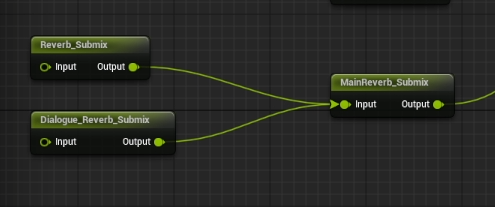
Example
An example mapping from volume settings to submixes:
| Volume setting | Submixes affected |
|---|---|
| Sound Effects | Sound effects submix, sound effects reverb submix, non-diegetic sound effects submix, UI submix |
| Music | Music submix |
| Dialogue | Dialogue submix, dialogue reverb submix |
| Cinematics | Cinematics submix |
Music has no reverb send in this setup, so it needs no reverb child submix.
Why not Sound Classes
Sound Class volume lowers playback, and lowers the reverb sends with it, but it does not change a sound's Defined Loudness. A sound with a high loudness value continues to push up the System Loudness and duck the mix even when the player has turned it down to near silence. The mix then behaves differently depending on the player's settings, which is difficult to reason about while mixing.
Why not Loudness Modifiers
Lowering a sound's loudness does not necessarily lower its Resulting Level.
For example, a sound playing on it's own with a Defined Loudness of 120 playing lowered to 110, will still result in a Resulting Level of 1, meaning the sound still plays at full scale. The player has moved the slider 10 dB and heard no change in that sound; what changed is that everything else is now ducked 10 dB less.
A Loudness Modifier therefore does not map onto a volume slider, and it hands control of your HDR mix to the player.
When this approach does not apply
HDR does the dynamic mixing before the submixes, so a category the player has silenced still pushes up the System Loudness. A player could mute one submix entirely and still hear the ducking on another submix. For example, mute dialogue and still hear the ambience getting ducked by the dialogue you no longer hear.
Projects that use HDR ducking for music or dialogue will need a different approach for those categories, but we recommend keeping critical dialogue and music outside of HDR.