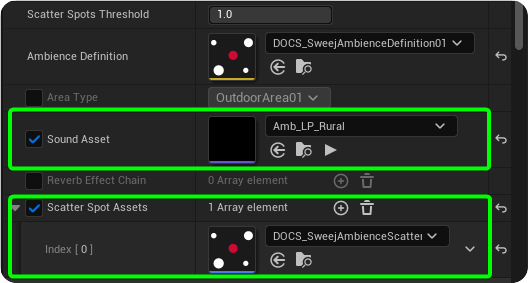
Reverb and Audio Effects
Sweej Ambience Volumes can also be used to smoothly blend between reverbs or other submix effects that you can attach to each volume.
Reverb Setup
This represents the reverb setup for a typical use case. Identify or set the Reverb Submix for your project:
Project Settings → Engine → Audio → Mix
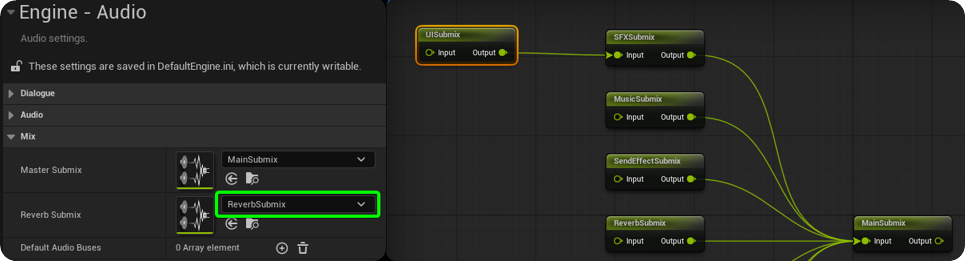
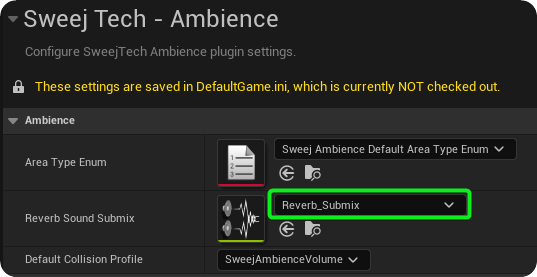
Set this as the Reverb Sound Submix for the SweejTech Ambience system to use.
Project Settings → SweejTech → Ambience
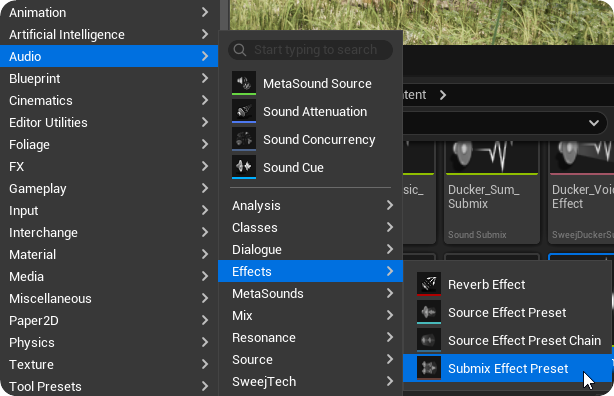
In your Content Browser create a new Submix Effect Preset.
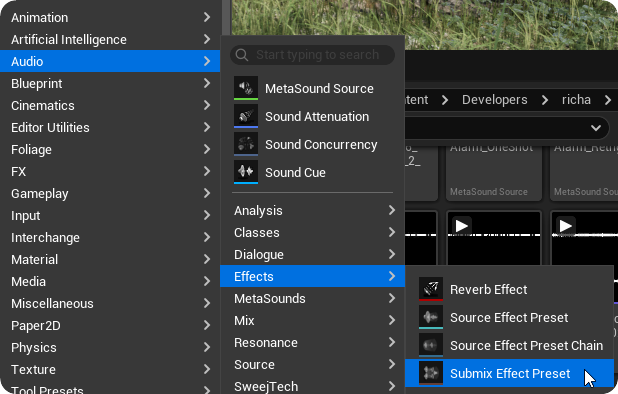
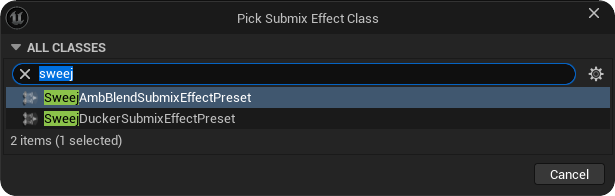
And choose the SweejAmbBlendSubmixEffectPreset class.
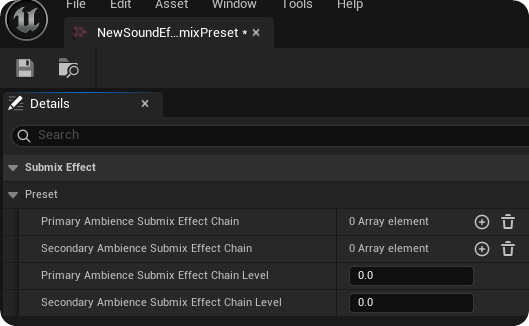
You can leave the contents blank since this will just act as a vehicle for the SweejAmbienceVolume Reverb settings.
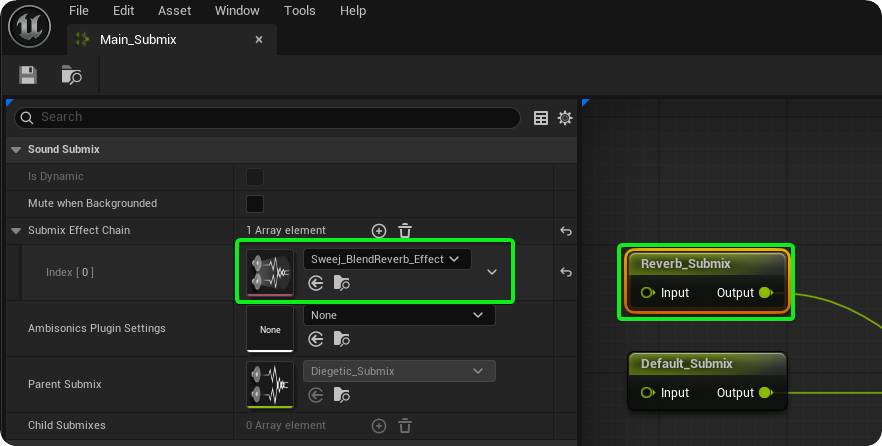
Once you have created the SweejAmbBlendSubmixEffectPreset open the Submix graph and use the + icon to add a new Submix Effect Chain for the Reverb submix, and assign the SweejAmbBlendSubmixEffectPreset to it.
Assigning Reverbs (or Effects)
Reverb effect chains can be assigned to either your global SweejAmbienceSound or your SweejAmbienceVolumes. You can create and apply any of the Submix effect presets that are available (convolution reverb, flexiverb, tap delay etc).
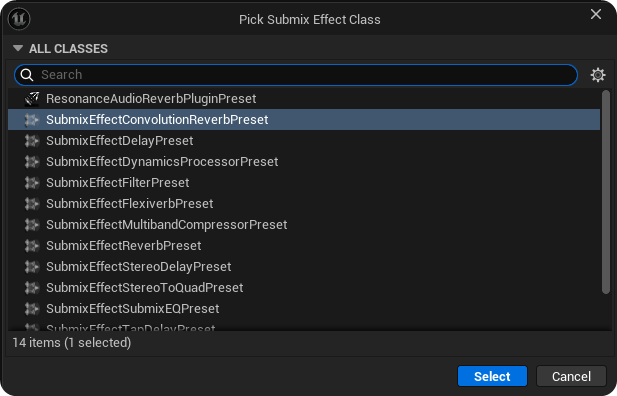
Enable the Reverb Effect Chain within the Ambience Component or a SweejAmbienceSound or SweejAmbienceVolume and click the + icon to add your Submix Effect Preset.
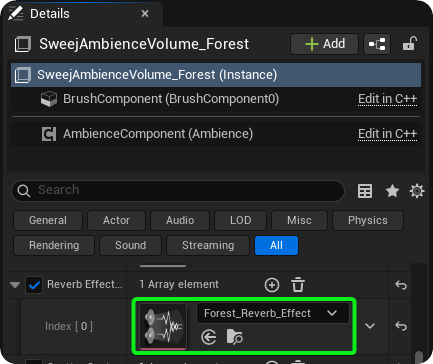
Note: If your level does not contain a global SweejAmbienceSound then the system will automatically select the reverb from the SweejAmbienceVolume with the highest priority.
To see what is going on you can add the Reverb Effect Chain column in the Ambience Inspector (right click on the column headings to enable / disable specific columns), or enable the show reverb debug console command: SweejTech.Ambience.ShowReverbDebug 1
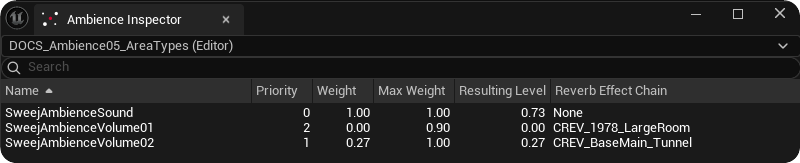
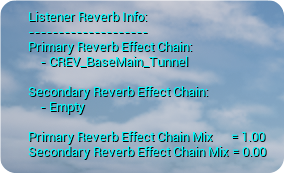
To enable smooth crossfading over distance between reverbs for different areas both Primary and Secondary reverbs are defined. Whichever reverb currently has the highest Reverb Effect Chain Mix value is designated as Primary, and the other becomes the Secondary. (Note that Reverb mixes are cumulative - so four overlapping areas which are all assigned a 'Forest' reverb with a 0.25 weight each would result in forest Reverb effect chain mix of 1.0.)
If the player starts within or enters area A first then at the positions 1-4 the following effects will be heard:
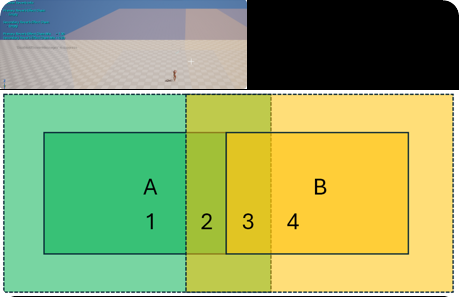
Primary Reverb Effect Chain Mix: A 1.0 / Secondary Reverb Effect Chain Mix: Empty
Primary Reverb Effect Chain Mix: A 0.6 / Secondary Reverb Effect Chain Mix: B 0.4
Primary Reverb Effect Chain Mix: B 0.6 / Secondary Reverb Effect Chain Mix: A 0.4
Primary Reverb Effect Chain Mix: B 1.0 / Secondary Reverb Effect Chain Mix: Empty
The SweejAmbienceVolumes Priority and Max Weight settings will impact on blend of the Reverb Effect chain mix in the same way that sounds from two volumes blend under the same circumstances. For example, in the A / B case above if B had a Max Weight of 0.8 and a Priority of 2.0 then when also within the Attenuation Distance or extents of A you would hear the Secondary Reverb Effect Chain Mix of A up to a level of 0.2.

Ambience Definitions
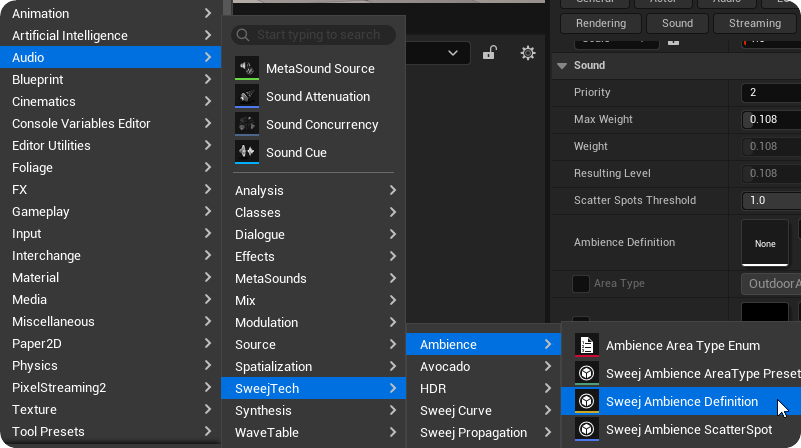
Ambience Definitions are very useful for using across multiple areas that share many settings (like tunnels, interiors or forest areas). Using an Ambience Definition makes it easier to maintain consistency and to make global changes without having to alter each instance. You can create your own Ambience Definitions from the +Add button in the Content Browser,
When an Ambience Definition is applied to a SweejAmbienceSound or SweejAmbienceVolume the AreaType, Sound Asset, ReverbEffectChain and ScatterSpot from the Ambience Definition are assigned to that actor.
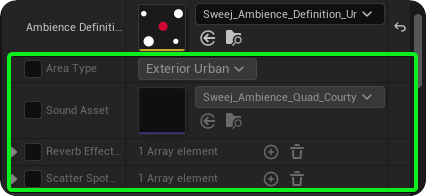
If you'd like to later make adjustments for any individual instances you can override the Ambience Definition setting locally by ticking the appropriate boxes.