Authoring
Once you have understood the concepts involved it is time to start authoring your content by establishing some initial settings.
Core HDR Settings
Open the HDR settings from Project Settings / SweejTech / HDR.
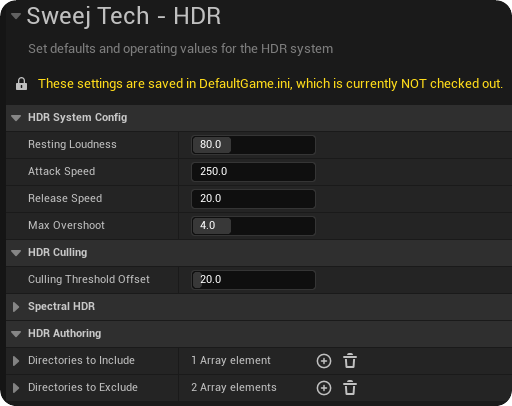
Unless you already have a specific use case in mind, we would recommend keeping these at their default values until you are in a position to audition and adjust them to your needs. See the HDR Controls window section below for a discussion of the kind of adjustments you might wish to make.
Include / Exclude folders for HDR
By default the HDR system includes all of the sounds in the project. However, you may want to specify particular folders to include or exclude when first setting up. For example, you may want to specify the root Audio or Sound folder for your project to avoid including irrelevant audio assets from the rest of the project. This is done in Project Settings / SweejTech / HDR.
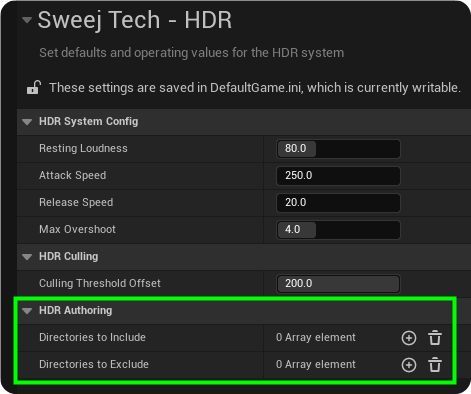
When you add a specific folder the system no longer includes the whole project folder. Specifying folders or excluding folders helps to keep the HDR Authoring and HDR Hierarchy windows free of unnecessary clutter such as sounds that won't use HDR (typically VO, UI and Music), or sounds that are only ever be used within other higher-level assets, for example Sound Waves that are always and only used within MetaSounds.
Once the directories have been added your sounds will appear in the HDR Authoring window
HDR Settings for Sound Assets
HDR can now be enabled or disabled for specific assets, and HDR settings can be assigned, via the SweejTech HDR Toolbar in their respective Sound Wave, Sound Cue or MetaSound editors.
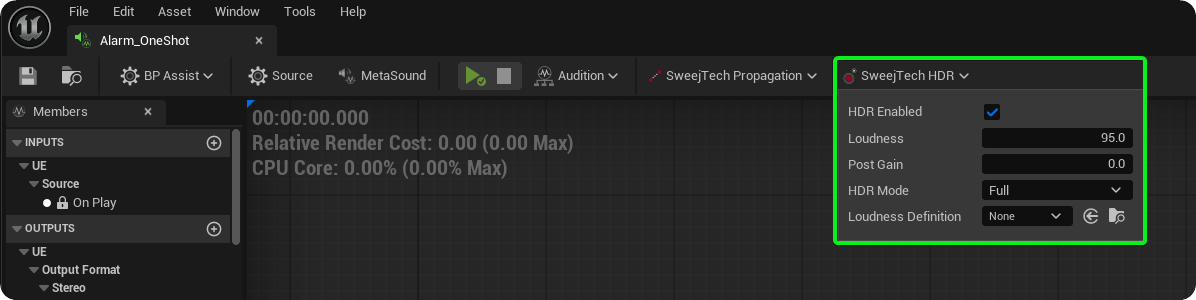
Note: You must apply HDR to the uppermost sound asset in any hierarchy, i.e. if a Sound Wave is used within a MetaSound then HDR must be enabled within the MetaSound, not the Sound Wave.
For batch editing or working on multiple assets quickly, the HDR authoring panel can be used.
HDR Authoring window
The 'HDR Authoring' window allows audio designers to enable HDR for individual sounds, and to specify their Loudness, Post Gain and HDR Mode. It also allows muting and soloing of individual HDR sounds.
Open the 'HDR Authoring' window: Window / HDR / SweejTech HDR Authoring

The icons for each sound represent their asset type, and you can use the search bar to filter by name (and exclude results using -). You can also double click on the sound assets to open their corresponding editors.
| Icon | Type |
|---|---|
 | MetaSound |
 | Sound Cue |
 | Sound Wave |
From the HDR Authoring window you can select which sounds participate in the HDR system by checking the HDR option, and you can combine key word filtering in the search bar with the HDR header box (highlighted below) to enable / disable HDR only for those items that are currently visible in the list. This will allow you to rapidly assign values to your sounds.

Loudness Definitions & the HDR Hierarchy Window
It is very likely that you will have groups of sounds that you want to share common HDR behaviours. You can group sounds using Loudness Definitions, and you can create a hierarchy of Loudness Definitions using the HDR Hierarchy window.
Assets with the same Loudness definition will share the following settings, unless modified locally.
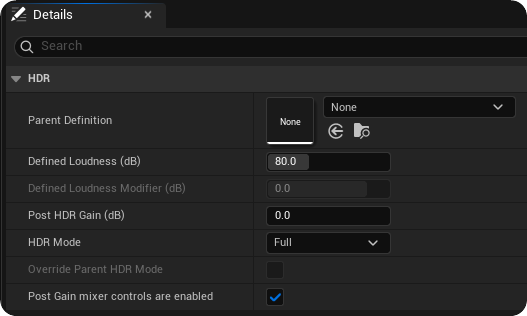
Open the 'HDR Hierarchy' window: Window / HDR / SweejTech HDR Hierarchy
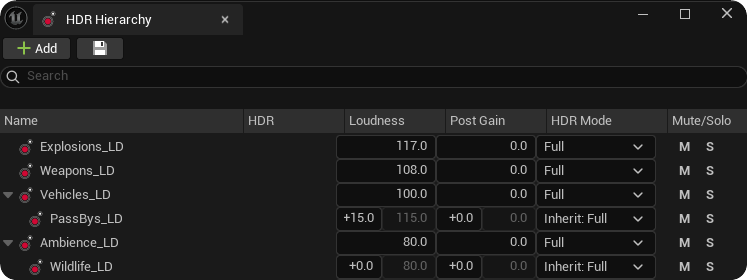
The 'HDR Hierarchy' window allows audio designers to group sounds using Loudness Definitions, to create hierarchies of Loudness Definitions using the parent / child analogy, and to organize these by adding and removing items.
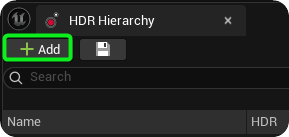
You can create Loudness Definition assets directly from the 'HDR Hierarchy' window using the +Add button.
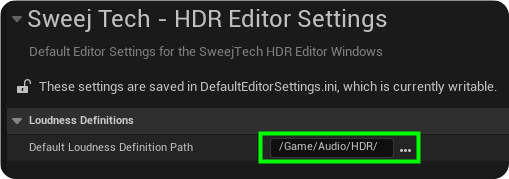
Loudness definitions are stored here by default: Game / Audio / HDR, this is set in Editor Preferences / SweejTech Editor Settings.
In the 'HDR Hierarchy' window you will see all of your Loudness Definitions. You can use the arrow keys to expand / collapse hierarchies.

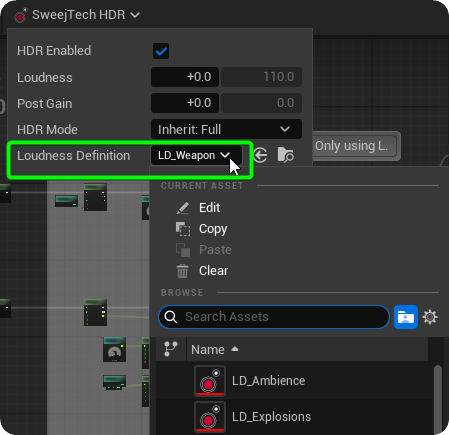
Sounds can also be assigned to Loudness Definitions via the SweejTech HDR toolbar in their respective editors.
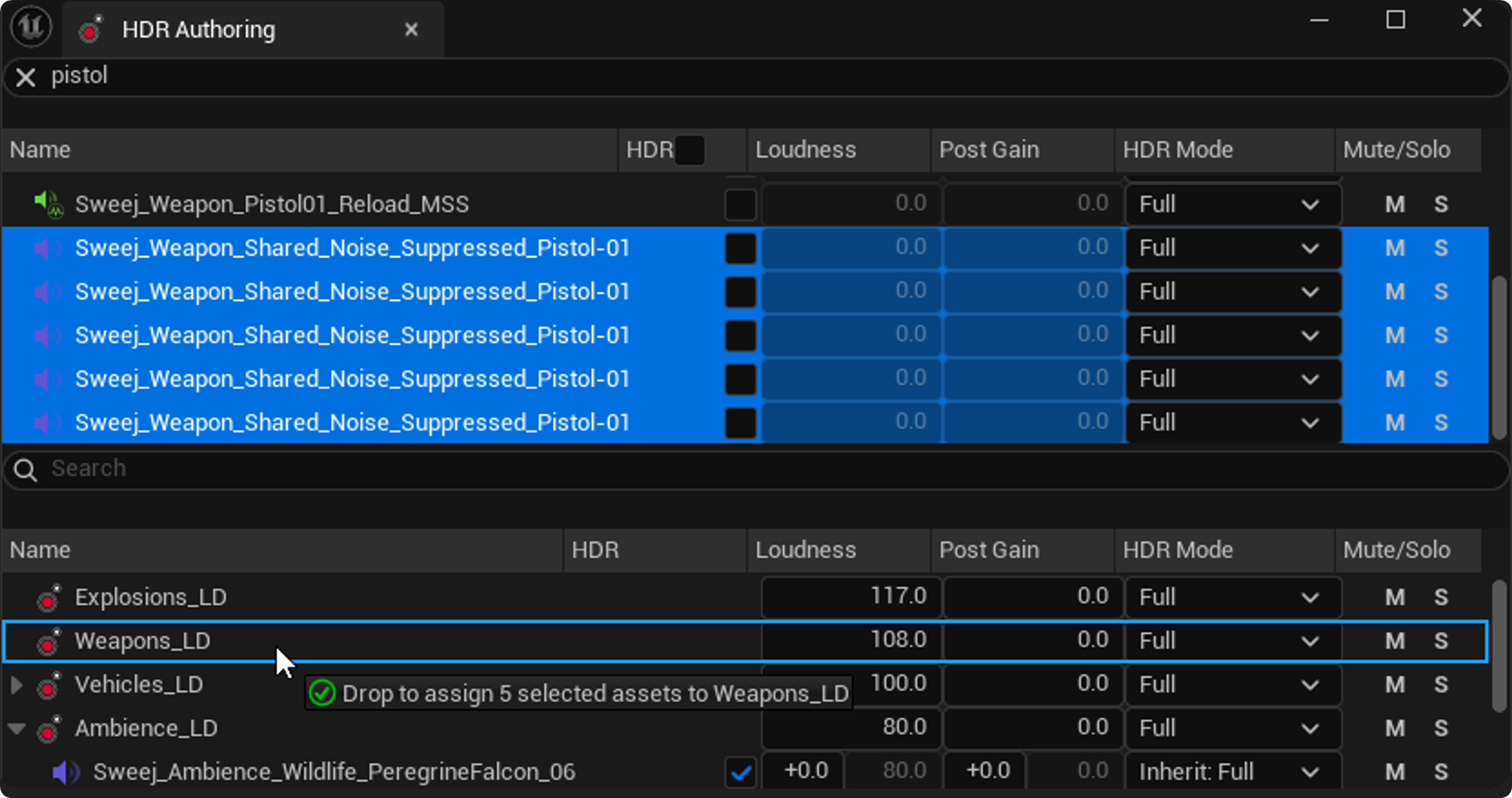
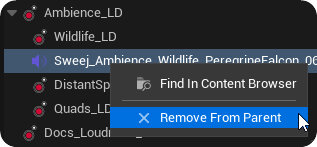
Or you can add sounds to your Loudness Definitions by dragging and dropping from the 'HDR Authoring' window into the 'HDR Hierarchy' window, or remove them by right clicking and selecting Remove from parent.
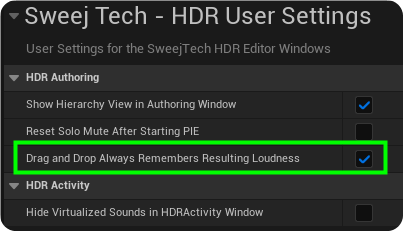
Note: The default setting is that assets remember their resulting loudness when using drag and drop. This can be disabled in Editor Preferences / SweejTech / HDR User Settings
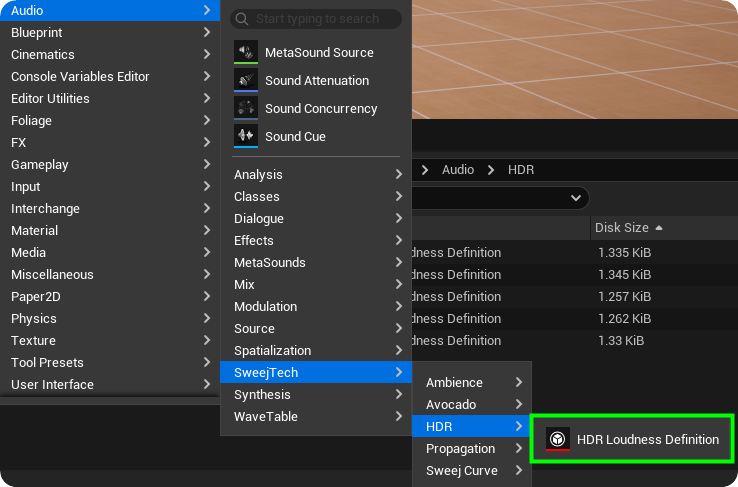
You can also create your own Loudness Definitions from the +Add button in the Content Browser, and you can edit their settings by double clicking on the assets themselves to open their editor, however this work is more efficiently done via the 'HDR Hierarchy' window.
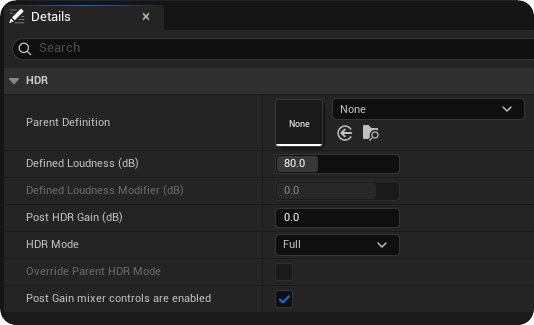
While Loudness Definitions are designed for HDR mixing, they serve as powerful project organization tools:
Audio Asset Management: Sort audio assets into logical categories
Legacy Project Rescue: Organize existing projects without rebuilding from scratch
Inheritance & Offsets
By default, sounds will inherit the HDR behaviours of their parent Loudness Definition, and you can have as many layers of parent / child hierarchies as is useful for your project. However, you may want to create exceptions for specific sounds whilst still keeping them within the group for organizational reasons.
In order to alter the HDR mode, create a Loudness offset, or Post Gain offset for a specific sound you can type in the value into the offset fields.
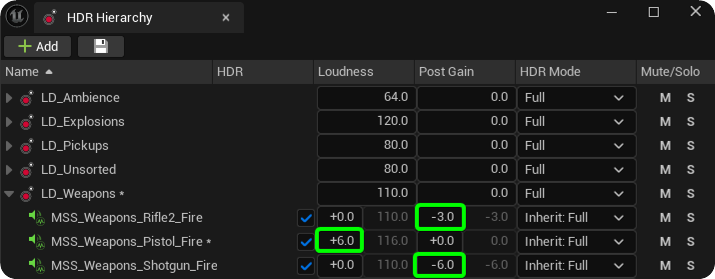
These exceptions for the general inheritance rule for individual sounds can also be done on the level of the Loudness Definitions themselves. Here you can determine whether the Loudness Definitions inherit the HDR Mode from the parent or have their own setting, and you can implement Loudness and Post Gain offsets that will apply to the sounds within that grouping.
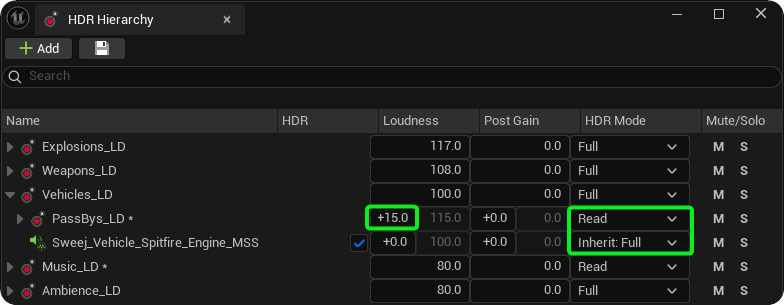
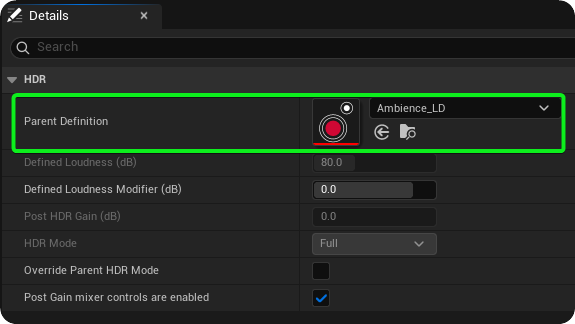
You can adjust the inheritance structure of Loudness Definitions by dragging and dropping, using the right click / Remove from Parent option, or through editing the Loudness Definition asset itself.
Hierarchy view within the authoring window
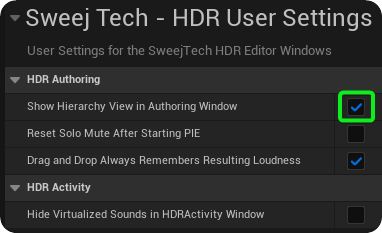
In the HDR User settings here: Editor Preferences / HDR User Settings there is an option to 'Show Hierarchy View in Authoring Window.
This opens an additional pane in the lower half of the 'HDR Authoring' window that displays the hierarchy view. This allows you to efficiently see and edit the hierarchies without needing to frequently switch windows.
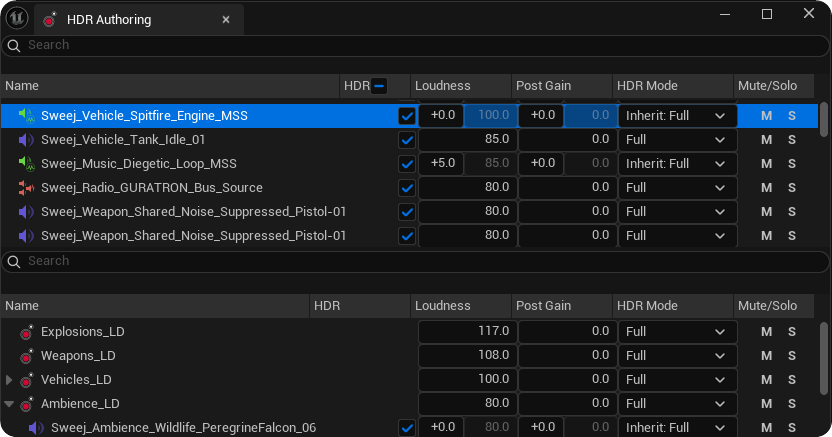
This also makes it easier to utilise the search bar filtering of the HDR Authoring window before then dragging and dropping sounds into your desired Loudness definition in the Hierarchy view pane.