
Reading the Audio Inspector
Press play or enable Realtime in the viewport

The audio inspector automatically populates with all playing sounds and displays information about them in the columns. In the footer of the Audio Inspector the Voice count and Master Volume Output are also displayed.

The columns displayed can be selected by right clicking in the inspector toolbar.
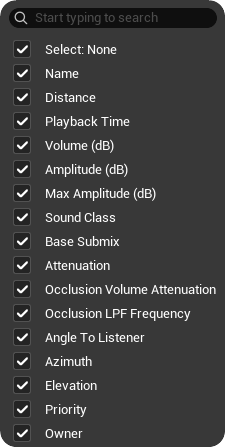
Name: The name of the sound asset currently playing (not the runtime instance name)
Distance: Distance in Unreal units from listener to sound source (any sounds at origin 0,0,0 will be highlighted & (Origin) displayed)
Playback Time: The time since the sound started playing
Volume: Current volume level applied to the sound in decibels
Amplitude: The sound’s metered amplitude in decibels
Max Amplitude: The sounds Maximum metered amplitude in decibels
Sound Class: The sound class assigned to this sound
Base Sound mix: The primary submix where the sound is routed
Attenuation: The attenuation settings asset applied to the sound
Occlusion Volume Attenuation: How much the volume is reduced due to occlusion (0-1 range)
Occlusion LPF Frequency: Low-pass filter frequency applied due to occlusion (in Hz)
Angle To Listener: The complete angle between sound source and listener (degrees)
Azimuth: Horizontal-only angle component (degrees, -180 to 180)
Elevation: Vertical angle component relative to listener (degrees)
Priority: The priority used for concurrency calculations
Owner: The actor or component that triggered or owns the sound
The frequency at which the list is updated is set within Edit → Editor Preferences → SweejTech → Audio Inspector settings.
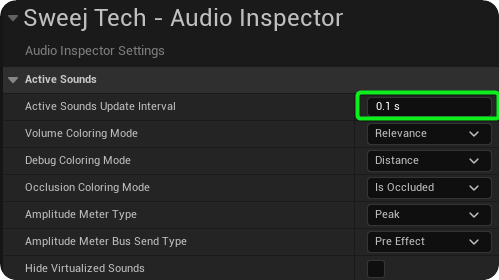
The default is set to 100 milliseconds but setting a setting a slower update interval can make it easier to read. makes it easier to read. Don’t forget you can as use the ‘Pause’ key on your keyboard to freeze the game, and this will also hold the current display in the Audio Inspector.