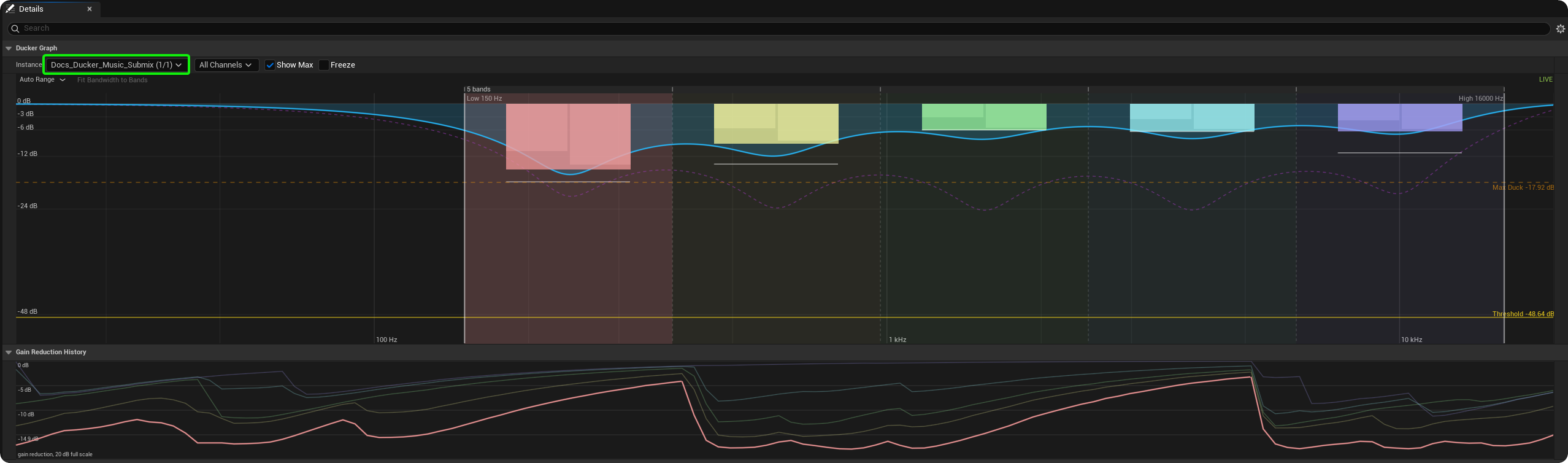
Ducker – Quick Start
Sweej Ducker works as a Submix effect.
Create a Sweej Ducker Submix Effect Preset
- Go to Audio → Advanced → Submix Effect Preset
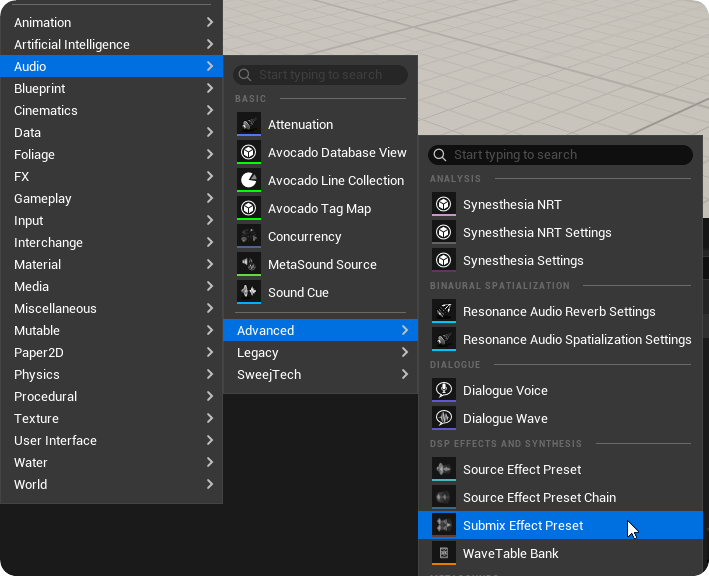
Create a Sweej Ducker Submix Effect Preset
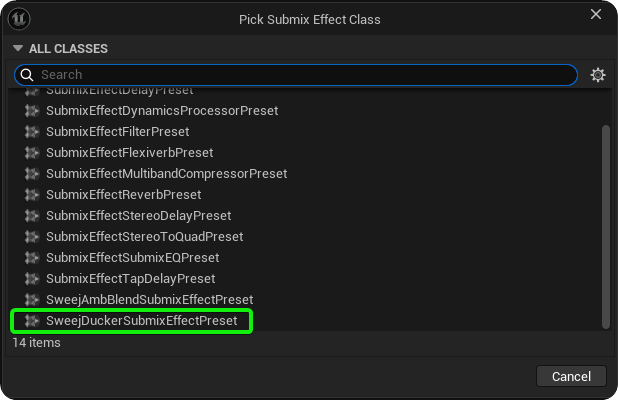
- Choose the Sweej Ducker Submix Effect Preset
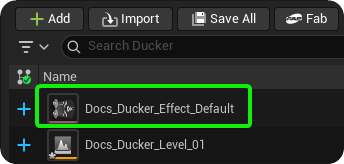
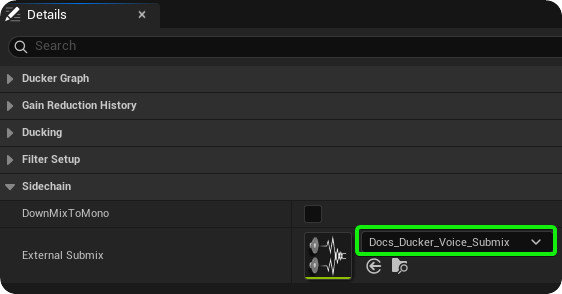
- Open the Sweej Ducker Submix Effect Preset and in the External Submix drop down menu assign the Submix that you want to act as the Sidechain ‘key input’ to the effect, in other words the Submix that is going to potentially duck the other submixes.
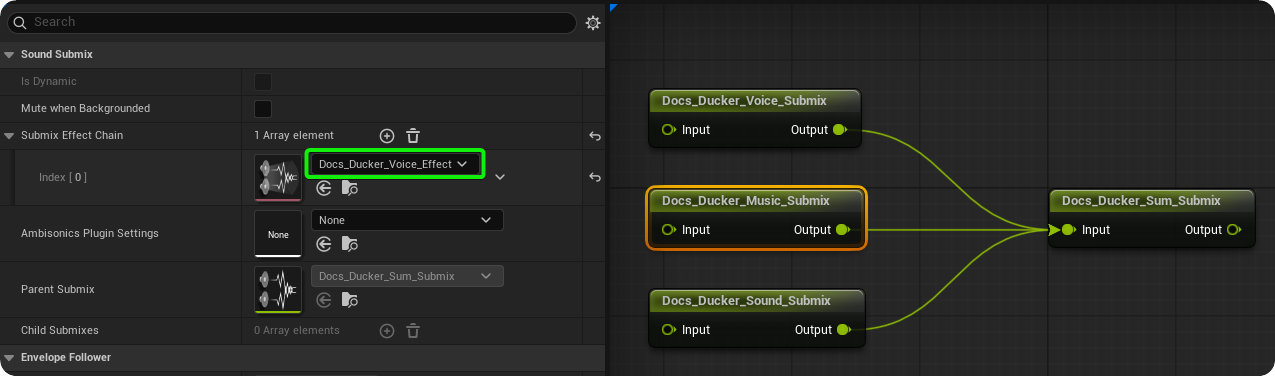
Find the other Submixes that you want to apply the ducking effect to and add a Submix Effect Chain. Then add your Sweej Ducker Submix Effect Preset to this.
Play the game and in your Sweej Ducker Submix Effect Preset adjust the Ducking and Filter Setup settings to suit your needs. See the Authoring page for more details.